Billing & credits
Manage your Certivant subscription, buy pay-as-you-go credits, understand trial expiry and billing states, and resolve invoices and payment issues.
What it does
The Settings → Billing page is where you choose how you pay Certivant. Four parallel concepts you should understand:
- Trial — your free 14 days after sign-up. No credit card needed.
- Subscription — a monthly or annual paid plan with a verification quota.
- Pay-as-you-go (PAYG) — no subscription; you buy a credit balance up front and each verification deducts one credit.
- Invoices — historical records of money owed and money paid.
Most customers move from trial → subscription. PAYG is the alternative for low-volume or seasonal usage where a monthly commitment doesn't make sense.
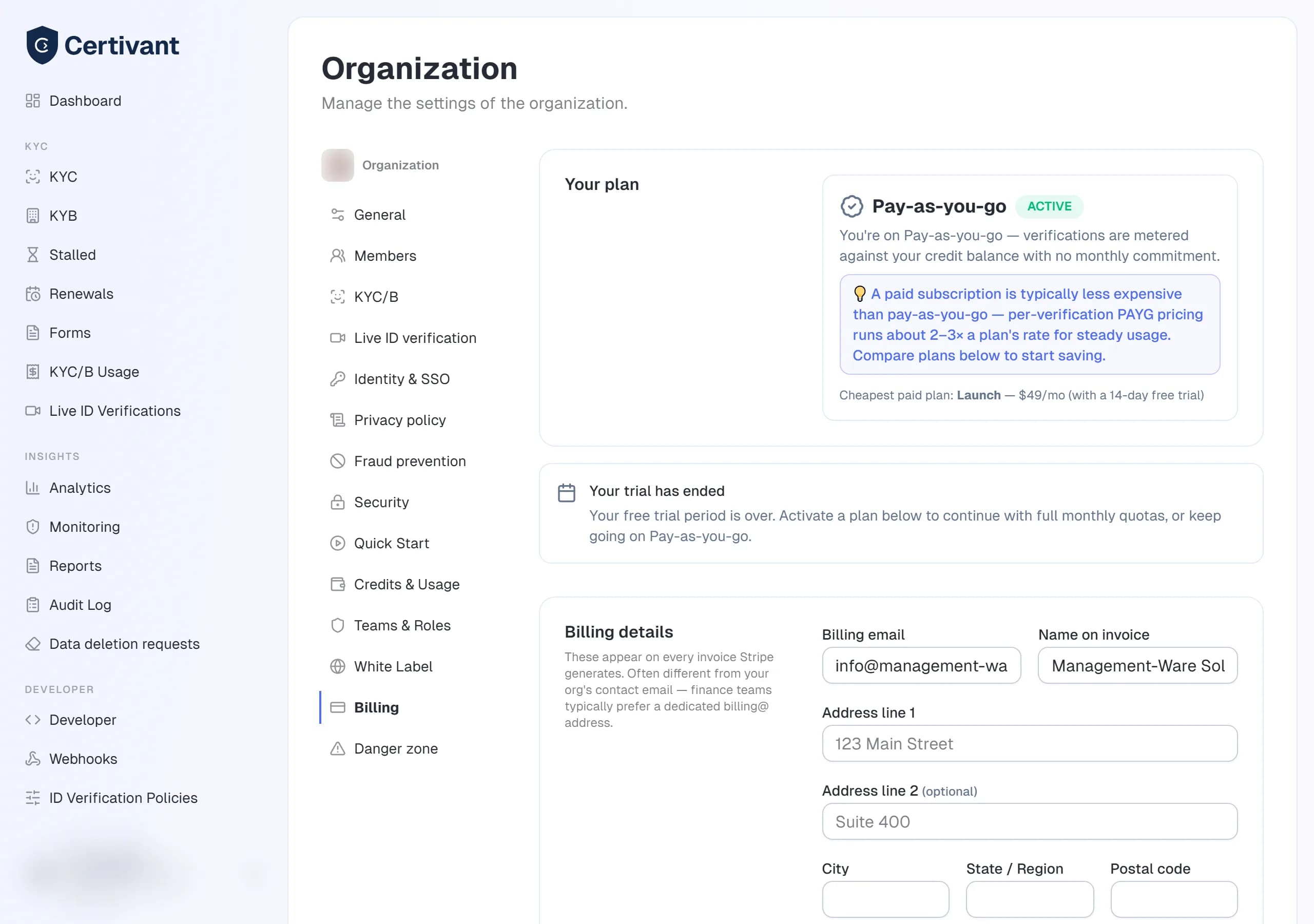
The billing states
A diagram of the lifecycle:
flowchart LR
    Signup --> Trial[14-day Trial]
    Trial -- "Buy plan" --> Paid[Active Subscription]
    Trial -- "Trial ends, has credits" --> PAYG[Pay-as-you-go]
    Trial -- "Trial ends, no credits" --> Locked[Trial Expired]
    Locked -- "Owner activates plan" --> Paid
    Locked -- "Owner switches to PAYG" --> PAYG
    PAYG -- "Run out of credits" --> Empty[Out of credits]
    Paid -- "Cancel + period ends" --> PAYG
Trial
You get one 14-day trial when you create your organization. During the trial:
- Your full plan features are unlocked.
- Verifications count against the trial plan's quota (typically generous).
- A banner reminds you of days remaining.
You can pay early. You don't lose unused trial days — your subscription starts immediately and runs from there.
Subscription
Pick a plan, enter a card (via Stripe), confirm. The plan grants a monthly quota of verifications and a seat limit. If you exceed the quota mid-cycle, additional verifications meter against any credit balance you have; if you have none, verifications pause.
Plans currently available (set by your super admin):
- Launch — small teams, 3 seats, 100 verifications/month.
- Scale — mid-size, 10 seats, 500 verifications/month.
- Pro — multi-tenant agencies, 50 seats, 2000 verifications/month + 3 orgs per account.
Subscriptions auto-renew. You can cancel at any time — service continues until the end of the current billing period, then you drop to PAYG (if you have credits) or trial-expired (if you don't).
Pay-as-you-go (PAYG)
If you'd rather not commit monthly, buy credits in packages. Each KYC or KYB verification costs one credit. PAYG per-verification pricing is typically 2–3× the per-unit cost on a plan — fine for occasional usage, more expensive at volume.
PAYG kicks in automatically when:
- Your trial ends and you have a positive credit balance.
- Your subscription ends and you have a positive credit balance.
- You buy your first credit pack before subscribing.
A banner appears on your org dashboard when you're in PAYG mode, showing your current balance and the cost-per-verification.
Trial expired
If your trial ends and you have neither an active subscription nor any credits, the organization enters trial-expired mode:
- Most features are paused. The KYC and KYB pages still load but you can't send or process verifications.
- A paywall appears.
The owner sees CTAs to Activate a plan or Continue Pay-as-you-go (buy credits to enter PAYG). Admins and members see a "Contact your account owner" message — they can't pay on the owner's behalf.
Only the org owner can activate a plan or switch to PAYG. If you're an admin or member and your trial expired, ask the owner. The system surfaces the owner's contact email on the paywall to make this easy.
What you can do on the billing page
Active plan card
Shows your current state — Trial, Subscription, or PAYG. For subscriptions, the renewal date and current period.
Plan grid
Lists every plan available to your account. The current plan is highlighted. Click any other plan to upgrade or downgrade — Stripe Checkout opens for confirmation.
Credit packages
Lists every credit pack. Buy one — Stripe Checkout opens; on success the credits land in your balance immediately.
Invoice history
Every payment you've made or owe. Statuses: paid, sent (waiting for payment), overdue, cancelled. Click any invoice for a PDF download link.
Billing contact
The email address that receives invoice and payment-failure notifications. Default is the org owner's email; you can change it to e.g. accounting@yourcompany.com.
Credits & usage
Settings → Credits & Usage shows what you have used and what each service costs.
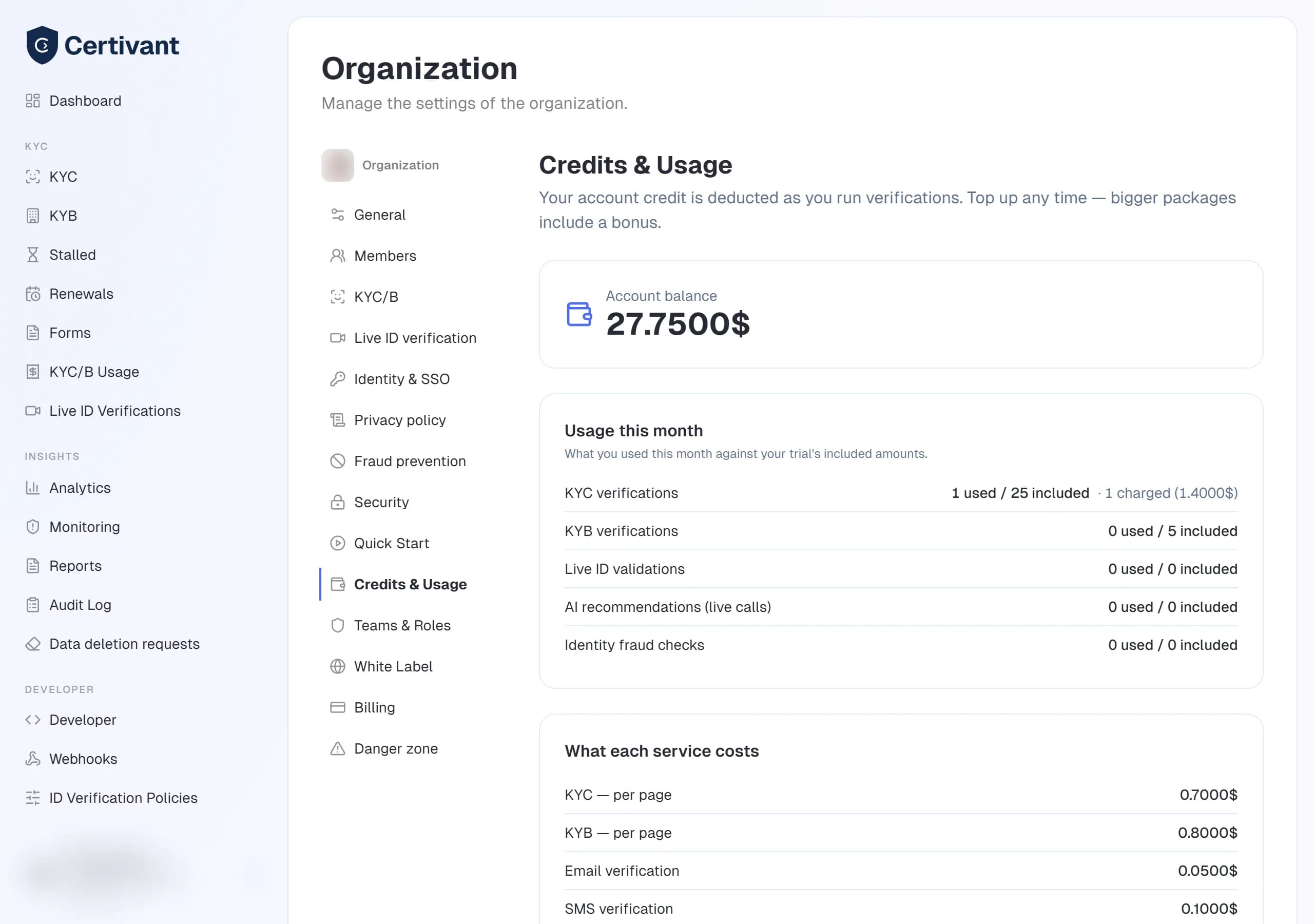
Usage this month
For every metered feature you see what you used this month against what your plan includes: KYC verifications, KYB verifications, Live ID validations, AI recommendations on live calls and identity fraud checks (and, when your plan has them, ongoing AML monitoring and age estimation). Anything beyond the included amount shows how many were charged and the amount.
Some plans — typically enterprise contracts — mark a feature unlimited. An unlimited feature is never charged, but it is still counted month by month, so you can see your real volume at renewal time. Those rows read "used (unlimited)".
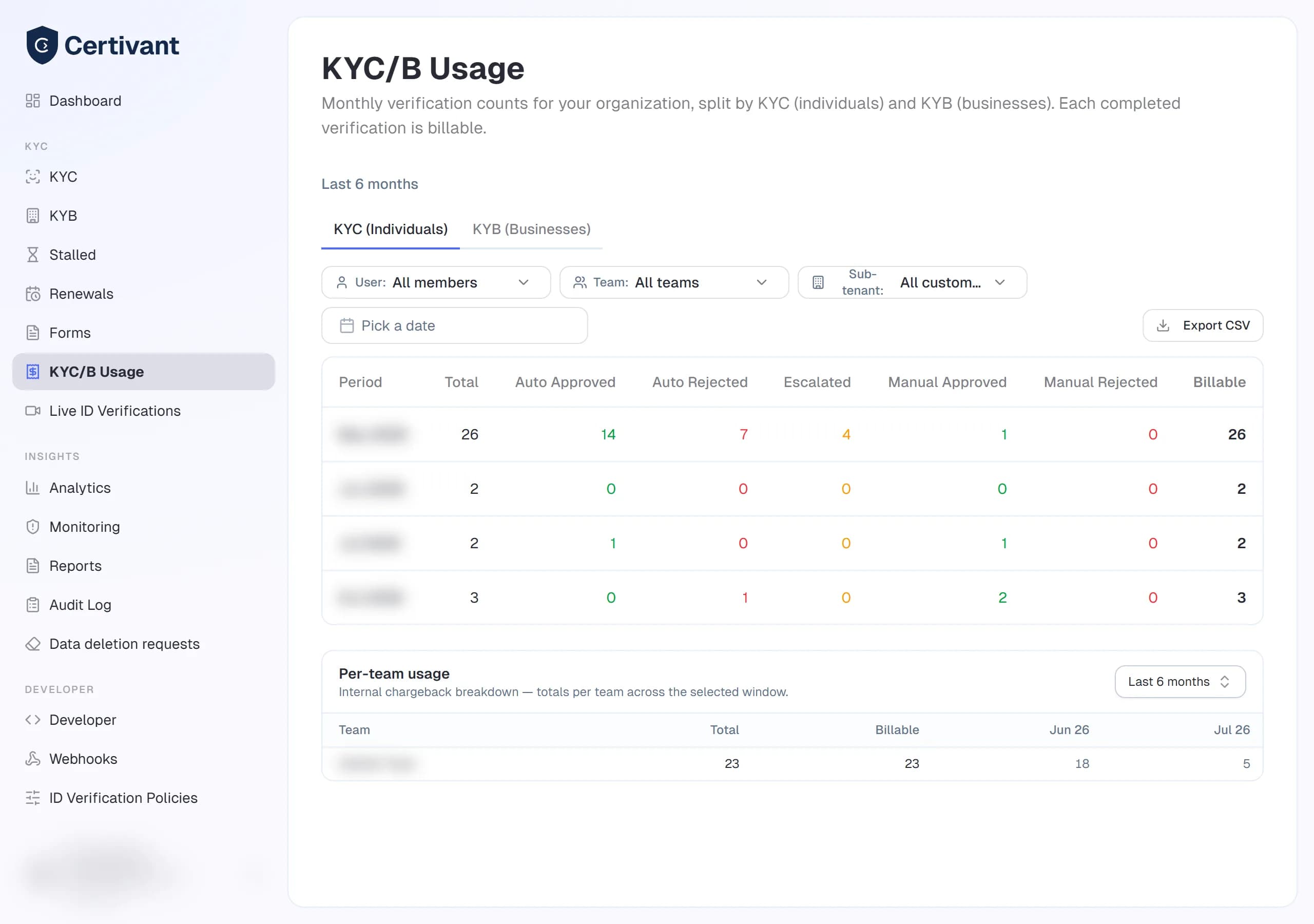
The KYC/B Usage page in the sidebar gives the monthly view: for individuals (KYC) and businesses (KYB) it shows, month by month, how many verifications were auto-approved, auto-rejected, escalated, manually approved and manually rejected, and how many were billable. Filter it by member, team or sub-tenant, or Export CSV.
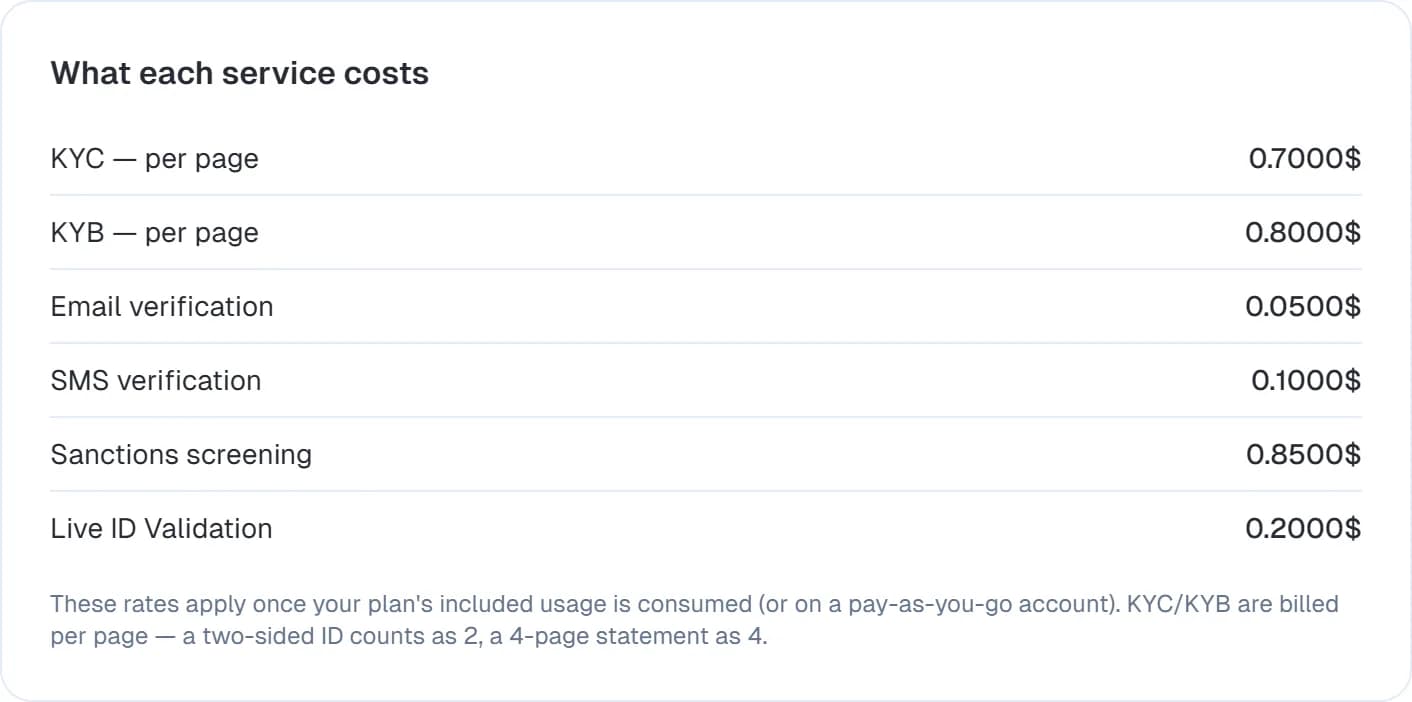
What each service costs
The pay-as-you-go price list. These prices apply once your plan's included amount is used up, or from the start on a pay-as-you-go account. If Certivant agreed custom rates with you, the card says so and shows your own rates.
| Service | How it is counted |
|---|---|
| KYC / KYB | Per document — both sides of an ID count as 1, and a new photo of the same document is free. Your plan's included verifications count documents the same way; on some plans KYC and KYB share one quota |
| Extra pages | Each page beyond the pages a document's price covers (5), such as a long statement or company file, up to a maximum per document |
| Email and SMS verification | Per code sent |
| Sanctions screening | Per screening |
| Live ID Validation | Per validation |
| Quick document check | Per check, after the free attempts |
| Live ID verification — AI recommendation | Per reviewed document beyond the plan's monthly amount |
| Identity fraud check | Per check beyond the plan's included checks (the same-face-different-identity check, see Fraud signals) |
| Age estimation | Per selfie estimate beyond the plan's included estimates (see Age check) |
| Ongoing AML monitoring | Per monitored person, per year (see Monitoring) |
| Reused verification and Reused business verification | Once per redeemed share, charged to the receiving organization — free unless your super admin sets a price (see Reused verifications) |
When your credit runs out
By default, when your balance reaches zero the metered features stop. Applicants who open a verification link or a form are shown a page that says the verification can't be completed right now and to contact your organization. The page names your organization (with your white-label name and logo) and never mentions credit, billing or money. The same refusal reaches API callers as HTTP 402 with the code verification_unavailable (see Errors).
Your owners and admins are told instead: each gets a notification and an email, at most once a day while the problem lasts, with a Top up credits button.
Your plan — or Certivant for your account — can instead be set to continue without credit. Then nothing stops when the balance hits zero:
- The balance goes negative and the page shows an Amount due, with a Top up to clear it button.
- Your next top-up pays the amount due first.
- A maximum amount due may be set. Past that amount, features stop as if there were no credit.
"Continue without credit" is a commercial setting made by Certivant, not a switch in your organization. If applicants are being turned away and you would rather they were not, top up or ask your Certivant contact to enable it.
Paying offline (check or wire transfer)
If your super admin has configured the offline payment gateway, you'll see a Pay by check or wire button next to each plan and credit-pack option. Picking it:
- Creates an invoice with bank/wire instructions and a 30-day due date.
- Emails the invoice to you.
- Doesn't activate the subscription yet — service stays on whatever it was.
- Once the super admin marks the invoice paid (after your payment clears), the subscription activates and your dashboard reflects it.
Offline payments are useful for company purchase-order processes or where you can't put a card on file. See Send a verification request for what happens after activation.
Overdue invoices
If you pay offline and the due date passes without payment received:
- The invoice flips to
overdue. - You receive a daily reminder email (configurable; up to 14 days).
- A red banner appears on your org dashboard.
- Your subscription doesn't activate until the invoice is settled OR you switch to PAYG.
The reminder email has an Unsubscribe from overdue billing link that automatically cancels the pending subscription and drops you to PAYG (if you have credits) or trial-expired (if you don't) — useful when the offline payment plan no longer makes sense.
Troubleshooting
My card was declined
Stripe sends you an email with the reason. The most common causes: insufficient funds, expired card, fraud-prevention block on your bank's side. Update the card in Stripe Checkout or contact your bank.
My subscription says "past due" but my card has funds
Stripe retries failed charges for ~3 weeks. During that window your account is in past_due status — service still runs but a banner warns you. Open billing, click Update payment method, and re-attempt.
I want to switch from PAYG to a plan
On the billing page, pick a plan and confirm. Your existing credit balance is preserved — it becomes a buffer for any month you exceed the plan quota.
I want to cancel my subscription
Open billing, click Cancel subscription. Service runs until the end of the current period; afterwards you drop to PAYG (if credits) or trial-expired (if not). You can resume any time during the grace period.
Trial ended and I see "This trial account has expired" but no buttons
You're not the owner. Find your org owner — their email is shown on the paywall — and ask them to activate.
Related
- Roles at a glance — only owners can pay.
- Invite teammates — seat limits come from your plan.
- White-label basics — typically gated on plan tier.
Reused Verifications
Accept a verification an applicant already completed with another Certivant organization — with their consent, without repeating the checks — and let your own applicants share theirs.
Identity & SSO
Configure single sign-on for your Certivant organization using Google, Microsoft, GitHub, SAML 2.0, or OIDC so your team authenticates with their existing corporate identity.