Send a verification request
Invite an applicant to complete KYC or KYB verification by email — pick a form template, pre-attest verified channels, assign managers, and track status through to a decision.
What it does
Creates a verification request for an applicant — a person (KYC) or a business (KYB) — and emails them a secure link to upload their documents. You'll see the new request appear in your KYC or KYB list immediately, in PENDING_UPLOAD status, and it moves through PROCESSING → APPROVED / REJECTED / ESCALATED as the applicant completes the flow and our checks run.
Before you start
- You need permission to create requests. Owners and admins always have it. Members and team users need either the
kyc.requests.create(orkyb.requests.createfor KYB) custom permission, or to be ateam_owner/team_adminof any team — the agency-broker case. - Optional but useful: a published form template (KYC or KYB) under Forms. If you don't pick one, the request uses your organization's default document set.
- The applicant's name and email. Phone is optional.
Steps
Open the KYC list
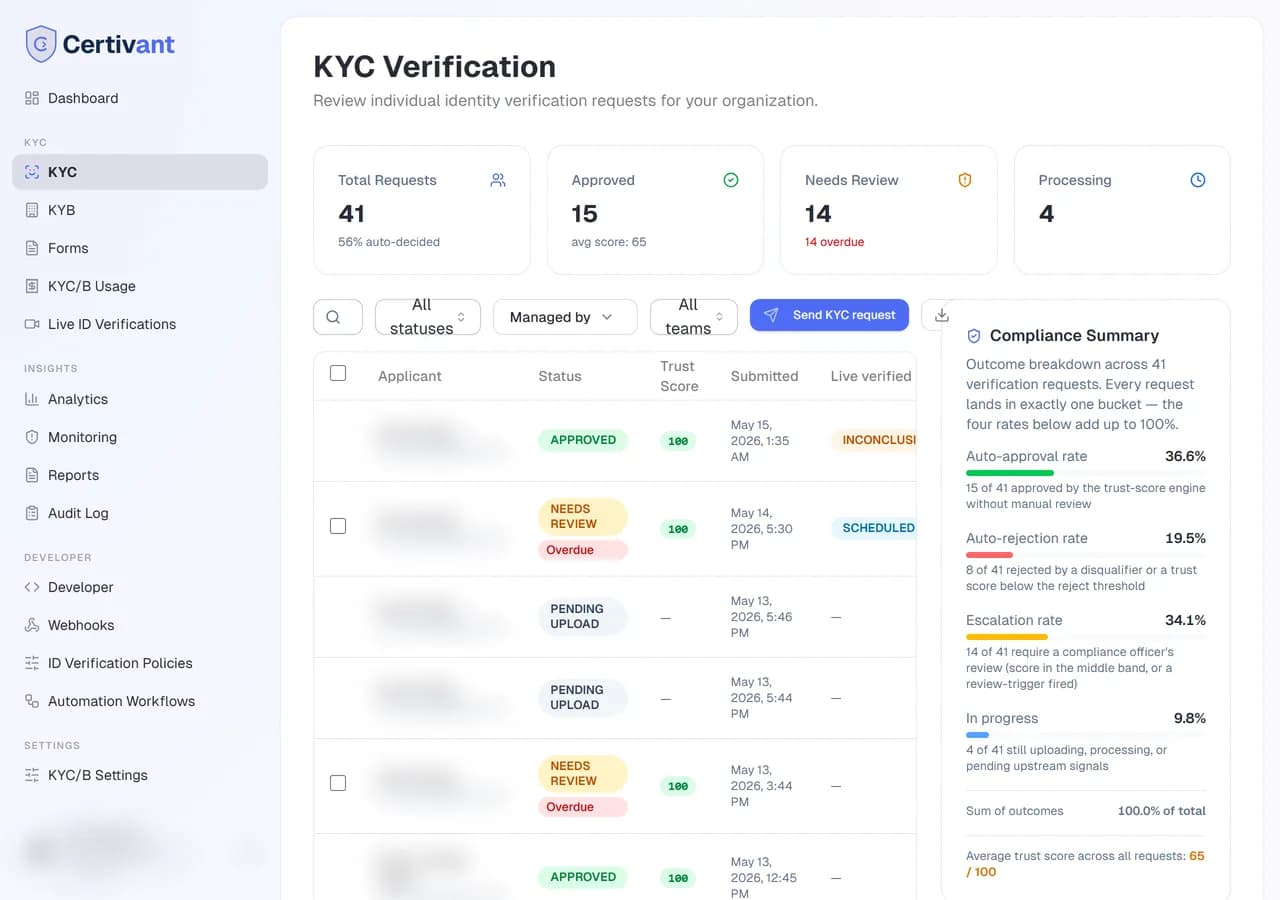
Click KYC in the left sidebar. The list of verification requests appears, with stats cards on top (Total / Approved / Needs Review / Processing).
Click "Send KYC request"
Top-right of the table, between the filters and Export CSV. The button is hidden if you don't have permission — if you don't see it, ask an admin to grant you kyc.requests.create.
Fill the applicant details
- Full name — the legal name of the person being verified.
- Email address — where the invitation link goes. Must be unique within your organization.
- (Optional) Mobile phone — used if SMS verification is part of your flow.
- (Optional) Email already verified — tick this when you have already verified the address (e.g., they signed up to your platform with it). Skips our send-code step.
- (Optional) Phone already verified — same logic for SMS.
- (Optional) Reason for this verification — why you are verifying the person, in a few words (e.g. "Financing an iPhone 16, 24 months"). Left empty, the form's default reason is used, else "New customer verification". A specific reason is recommended: it makes the fraud check useful. See Fraud network.
Pick a form (optional)
If you have a published KYC form (e.g., "Driver's license + selfie"), select it from the dropdown. Otherwise leave Use organization default — the applicant gets your org's default document checklist from Settings → KYC/B.
Assign managers
The dialog pre-selects you as the primary manager. The primary manager owns the applicant — they appear in the primary manager's data-isolation scope. Add additional managers by searching the org member list. The first picked user is always the primary; the rest become secondary managers.
A solo broker just leaves themselves selected. An agency normally adds the team lead as primary and the assistant as secondary.
Send
Click Send request. The applicant receives an email with a link to upload their documents. The link expires in 72 hours.
You'll see a confirmation toast. If the email send fails (rare), you'll see a warning instead — the request is still created and you can copy the link from the detail page.
Open the KYB list
Click KYB in the left sidebar.
Click "Send KYB request"
The button works the same as the KYC button.
Fill the business + contact details
- Business contact / authorised representative — the person who'll complete the verification on behalf of the business.
- Email address — where the invitation goes.
- (Optional) phone, pre-verified attestations, form, and managers — all work the same as the KYC dialog.
The form picker filters to KYB-typed forms only.
Send
The applicant receives an email titled "Business verification requested" with the link.
After sending
The new request appears in your list at the top, status PENDING_UPLOAD. It will stay there until the applicant clicks the link and uploads their documents. Once they submit, it moves to PROCESSING (our checks run), then settles to APPROVED, REJECTED, or ESCALATED.
See Review verification requests for what to do at each stage.
Options & fields
| Field | Required | Notes |
|---|---|---|
| Full name | yes | Stored on the applicant record; appears in audit logs. |
| yes | Must be a valid email. Lowercased on save. | |
| Phone | no | Free-text, no format enforcement (yet). |
| Email already verified | no | Skips our email-OTP step. Use only when you've verified it yourself. |
| Phone already verified | no | Skips our SMS-OTP step. |
| Reason for this verification | no | Why you are verifying the person. Empty = the form's default reason, else "New customer verification". |
| Form | no | Picks which form template the applicant fills. Defaults to org checklist. |
| Managers | yes (defaults to caller) | First is the primary owner; the rest are secondary. |
Troubleshooting
"Send KYC request" button is missing
You don't have permission. Ask an admin to grant kyc.requests.create or kyb.requests.create via Settings → Teams & Roles → Roles & Permissions, or to add you to a team as team_owner / team_admin.
The applicant says they never got the email
Check:
- Their spam folder (this is the most common cause).
- The applicant's email address on the request detail page — typos are common.
- Settings → Email to confirm your email provider is configured and working. Super admins can run a test send from there.
If the email genuinely failed, open the request detail and use Resend invitation to retry.
The applicant clicked the link but it says expired
Verification links expire after 72 hours. Open the request detail and click Resend invitation to send a fresh link.
I sent it to the wrong email
Open the request detail, click the menu icon, and select Cancel request. Then send a new request to the correct email.
Related
- Review verification requests
- Invite teammates — so you can pre-assign them as managers.
- White-label basics — so the email and the upload page show your brand.
Roles at a glance
A quick reference for Certivant organization roles and team roles — what owners, admins, members, and team roles can do, with examples for solo brokers and agencies.
Review KYC and KYB Verification Requests
Browse the Certivant KYC and KYB request list, use filters and bulk actions, and approve, reject, escalate, or override automated verification decisions from the detail screen.