Blocklist and duplicate detection
Block faces, document numbers, phone numbers, email addresses, IP addresses and devices for your organization, and choose what happens when a different person reuses a phone number, email address, device or IP address.
Settings → Fraud prevention holds two things: your blocklist, and the duplicate detection rules. Both work on every verification — individual or business — and both leave the final say with a person unless you choose to reject automatically.
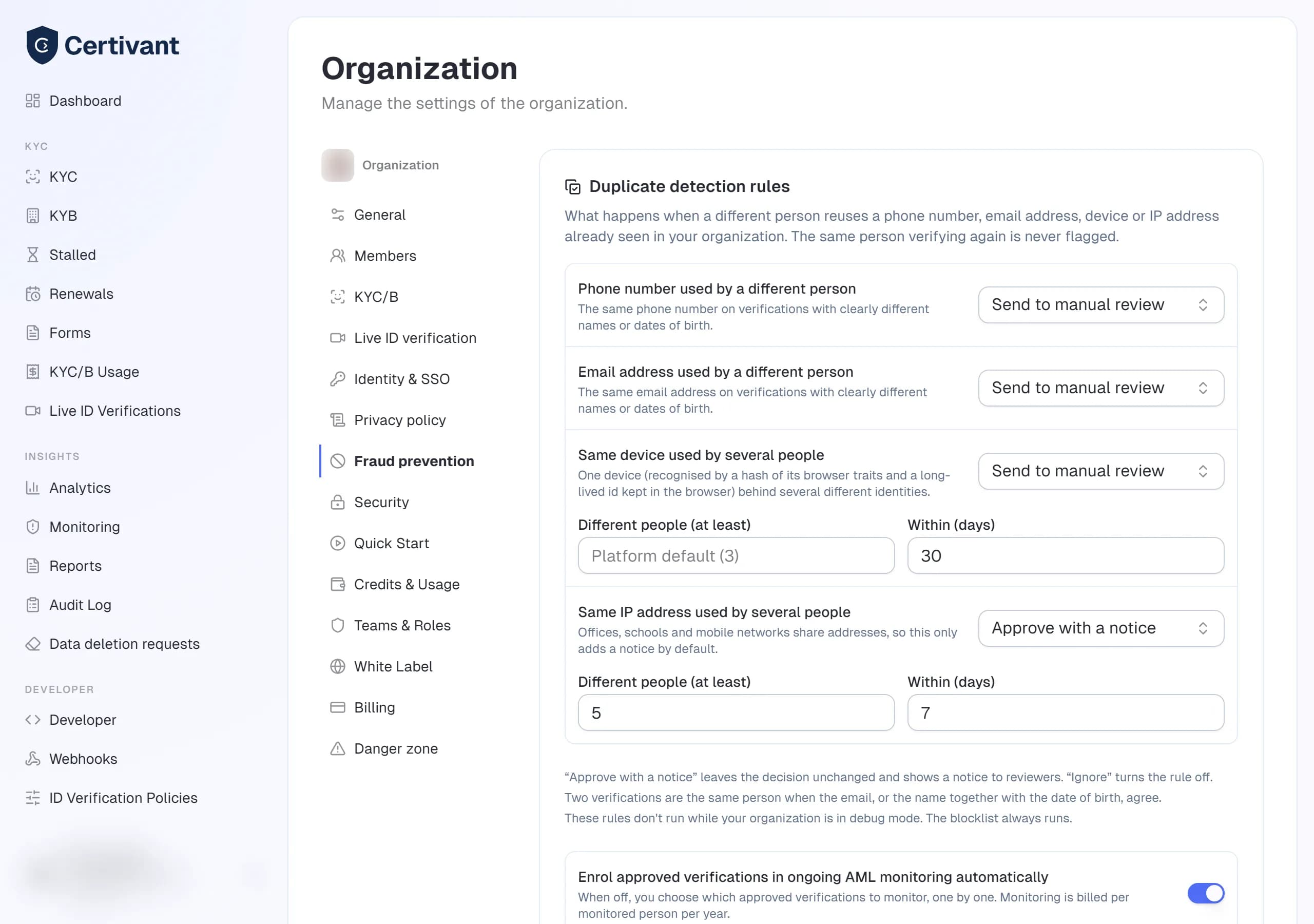
The blocklist
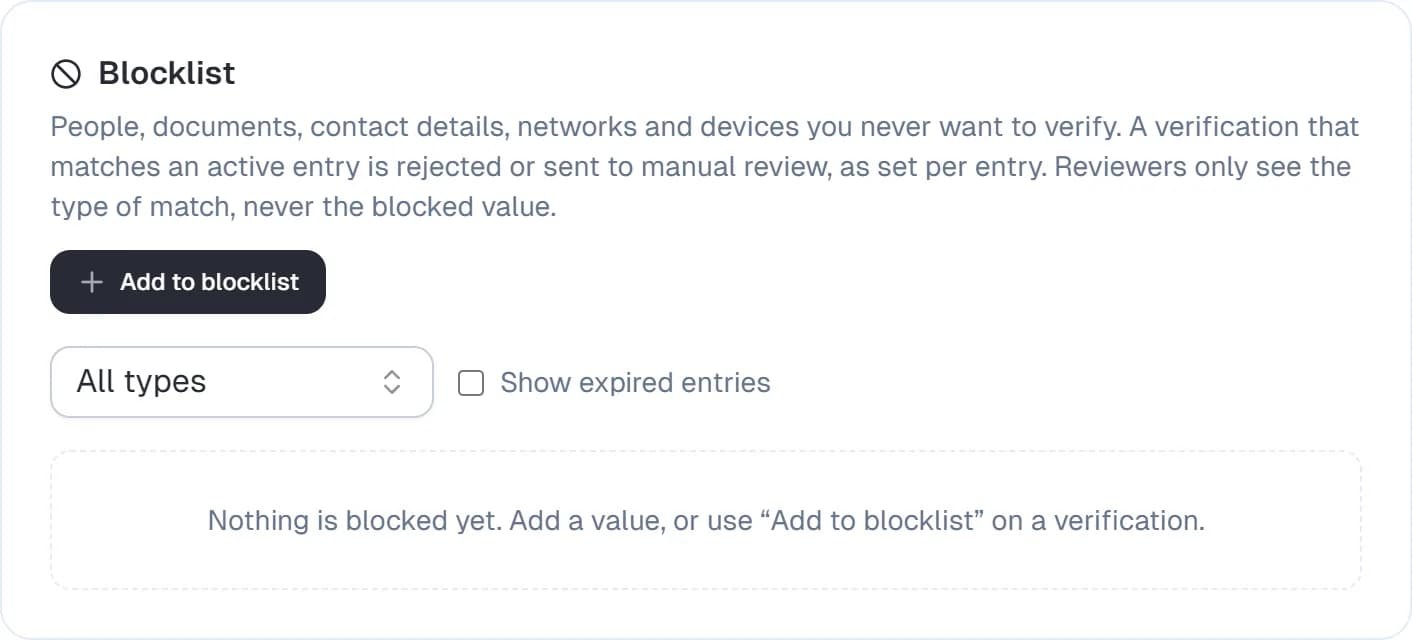
Add anything you never want to verify:
| Type | How you add it | What is stored |
|---|---|---|
| Email address | Type it | A one-way hash and a masked hint (j•••@e•••.com) |
| Phone number | Type it, any format | A one-way hash and the last four digits |
| Document number | Type it, or from a verification | A one-way hash and the last three characters |
| IP address or range | Type 203.0.113.7 or a CIDR range such as 203.0.113.0/24 (IPv4 and IPv6) | The address or range itself (needed to compare ranges) |
| Face | From a verification | A face template — never a photo. It is kept even after the verification's documents are deleted |
| Device | From a verification | A one-way hash of the device's fingerprint and of its long-lived browser id |
Every entry has:
- When matched — Send to manual review (the default) or Reject.
- Reason — free text, visible only to your team.
- Expires on — optional. An expired entry stops matching and is hidden unless you tick Show expired entries.
Document numbers, phone numbers, emails and devices are never stored as plain values: the hash uses a key only Certivant holds, so the list cannot be read back. The list shows the masked hint only.
Add from a verification
Open a verification and choose Add to blocklist. The dialog lists what that verification carries — face, document number(s), email, phone, IP address, device — and you tick what to block. Things the verification doesn't have are greyed out. The values are never displayed.
A face can only be added when the verification has a stored face template (the applicant gave the identity fraud check consent).
What happens on a match
When an applicant submits, Certivant compares the verification with your active entries:
- The request gets a Blocklist match signal. The reviewer sees the type of match ("a blocked email address"), never the blocked value.
- With Send to manual review, the verification cannot be auto-approved: it goes to review with the trigger Matched the blocklist.
- With Reject, the verification is rejected. The applicant is told nothing about why; the explanation page only says an additional identity check is required.
- Policies and workflows can read
fraud.blocklistMatch(true/false) andfraud.blocklistKinds(a list such asemail,ip). See the policy designer.
A face matches when it is within the same distance used by the cross-organization face check, against your own entries only. Other organizations never see or match your blocklist.
Every add, change and removal is written to the audit log (blocklist.entry_added, blocklist.entry_updated, blocklist.entry_removed) with who did it, the entry type and the action — not the value.
Permissions
| Permission | Allows |
|---|---|
View Blocklist (fraud.blocklist.view) | See the list (types, masked hints, reasons, expiry) |
Manage Blocklist (fraud.blocklist.manage) | Add, change and remove entries, including from a verification |
Manage Fraud Rules (fraud.rules.manage) | Change the duplicate detection rules below |
Owners and admins have all three. The Compliance officer role has all three; the KYC reviewer role can view; the Senior reviewer can view and manage the blocklist.
Duplicate detection rules
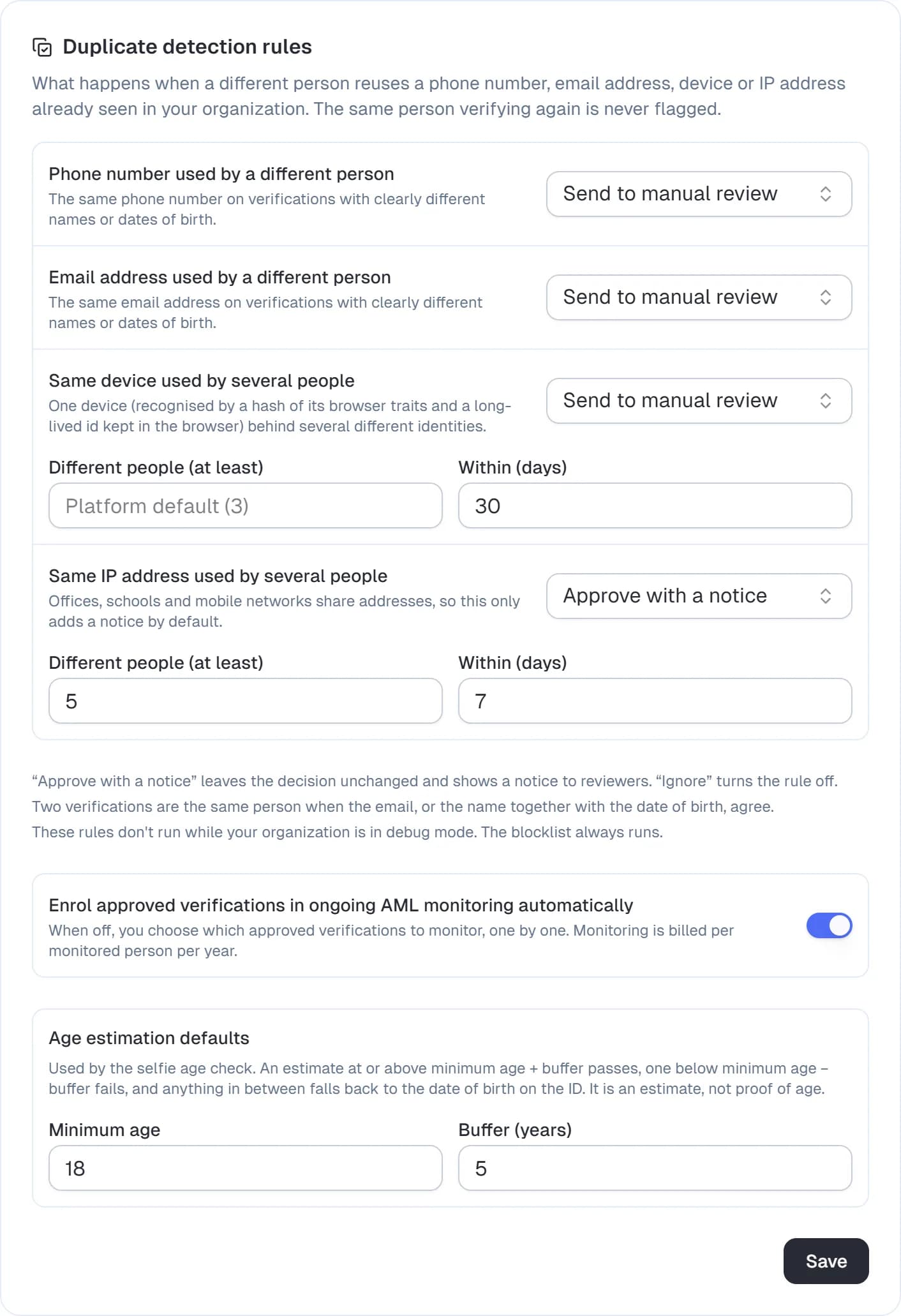
Each rule has an action, like the network risk settings:
| Action | Effect |
|---|---|
| Reject | The verification is rejected |
| Send to manual review | A person decides |
| Approve with a notice | The decision is unchanged; reviewers see a notice |
| Ignore | The rule doesn't run |
| Rule | Default | What it looks at |
|---|---|---|
| Phone number used by a different person | Manual review | The same phone number on verifications of your organization with a clearly different name or date of birth |
| Email address used by a different person | Manual review | The same email address, same test |
| Same device used by several people | Manual review at 3 people in 30 days | The same device behind several identities |
| Same IP address used by several people | Approve with a notice at 5 people in 7 days | The same IP address behind several identities |
For the device and IP rules you set how many different people and how many days. Leave the device threshold empty to use the platform default (3).
The same person verifying again never trips a rule. Two verifications are the same person when the email, or the name together with the date of birth, agree — so a retry, a renewal or a second document under a new applicant record is fine. Phone and email checks compare the name and date of birth directly (accents, name order and punctuation are ignored); when one side has no name or date of birth the result is "unknown" and nothing happens.
Lookups use the one-way indexes already kept for searching applicants — Certivant never scans plaintext. These rules don't run while your organization is in debug mode; the blocklist always does. The document-number rule (the same number on another person's verification) is automatic and unchanged — see Fraud signals.
How devices are recognised
In the hosted verification page and in public forms, the applicant's browser sends two privacy-conscious signals, both hashed before they leave the browser or before they are stored:
- a fingerprint of stable traits: browser, screen size, time zone, languages, platform, number of processor cores and how the browser draws a small canvas and reports its graphics card;
- a random device id kept in the browser's storage and a long-lived first-party cookie. It identifies a returning browser even if its traits changed (an update, a resized window). Clearing the browser's data resets it.
Neither value contains personal data, and neither is shown to you. Certivant HMACs both with a server key before storing them, and the applicant's consent text mentions that technical device and connection data is recorded to prevent fraud. A change in how the fingerprint is built restarts the device history, so after an upgrade the device rule needs a few verifications before it can match again.
Related
- Fraud signals and face matching — the signals these rules produce.
- Policy designer — use
fraud.blocklistMatch,fraud.duplicatePhone,fraud.duplicateEmail,fraud.duplicateDeviceandfraud.duplicateIpin your own rules. - Automation workflows — react to the same facts.
- Blocklist API — manage the list from your own system.
- Age check — the default minimum age and buffer live in the same Rules card.
Fraud Network
How Certivant compares a new verification with verifications done at other companies — by kind of request only, never naming anyone — what it flags, and how your organization can tune it.
Age check
Check that an applicant is old enough using a selfie age estimate, with an automatic fall back to the date of birth on their ID when the estimate is too close to call.