Document Types, Expiry & Recency Settings
Choose which identity and business documents Certivant accepts, set how old a document may be, and decide what happens when a document is expired, too old, or its date can't be read — for both KYC and KYB.
What it does
These settings live on Settings → KYC and control which documents your applicants may submit and how Certivant treats a document's dates. They apply to both KYC (identity) and KYB (business) verifications — the rules key off the document type, not the request type.
Supported document types
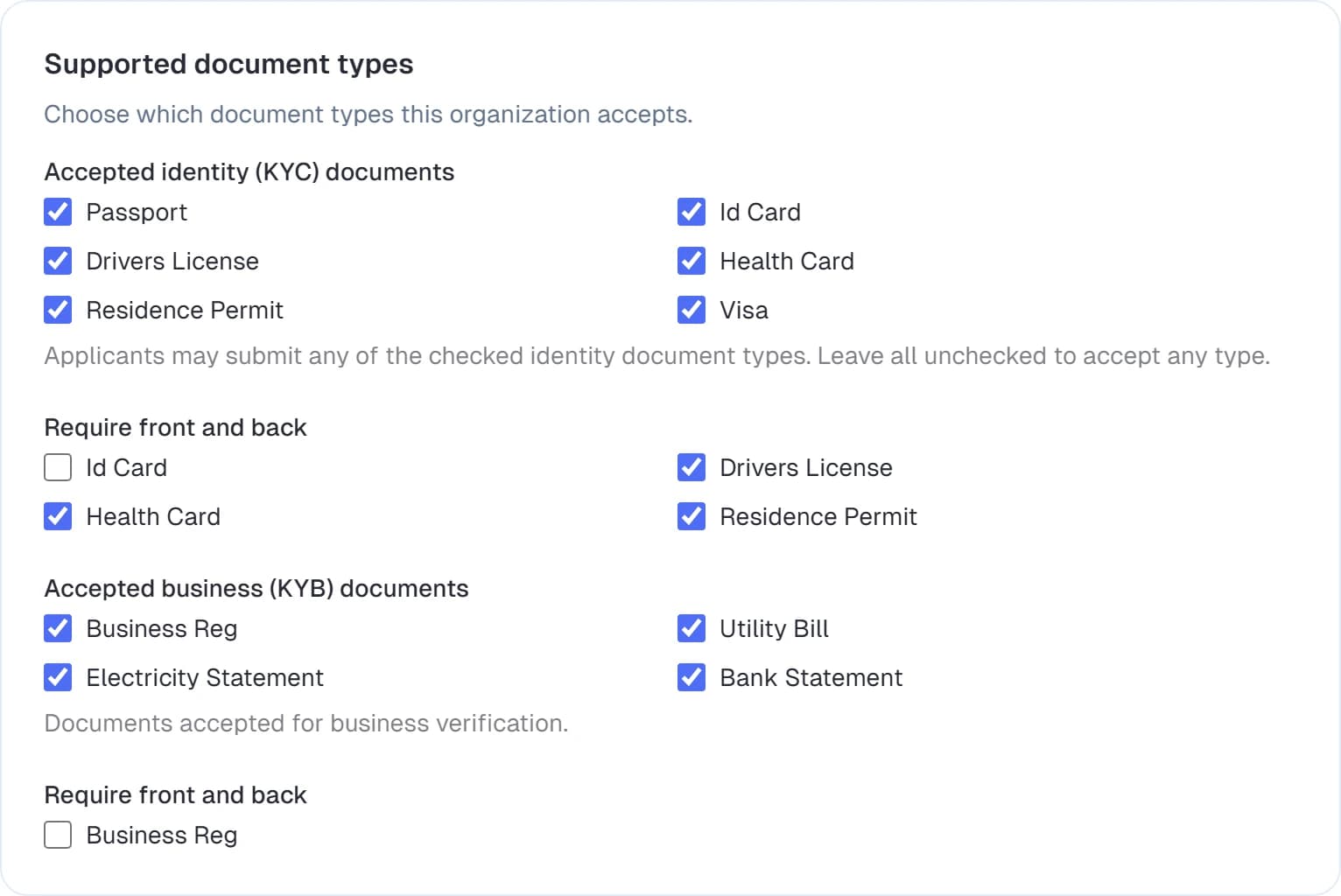
Tick the document types your organization accepts. Two groups:
- Accepted identity (KYC) documents — passport, national ID card, driver's licence, residence permit, visa. The health insurance card is not accepted: in some jurisdictions, such as Québec, it may not be required for anything other than health services. Health cards already on file still display.
- Accepted business (KYB) documents — business registration, utility bill, electricity statement, bank statement.
For types that have two sides (ID card, driver's licence, etc.), use Require front and back to force the applicant to upload both.
If you leave a group fully unchecked, Certivant accepts any type in that group. When you select a subset, an applicant who uploads a type you didn't list isn't auto-rejected — a healthy verification is sent to manual review instead, so you can accept a legitimate-but-unlisted document.
Document recency & expiry
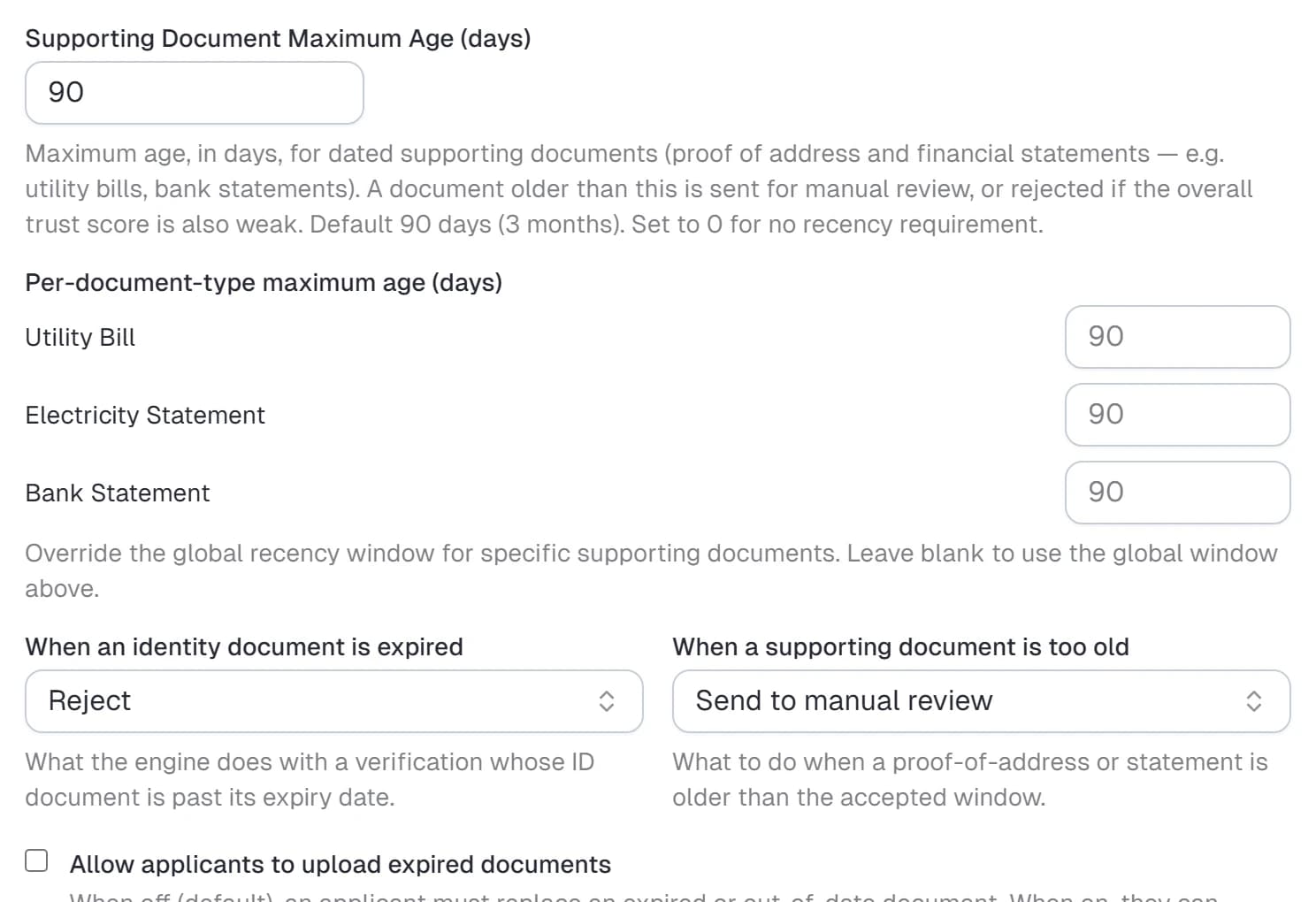
Maximum age (recency)
Proof-of-address and financial documents — utility bills, electricity statements, bank statements — must be recent. Set:
- Maximum age (days) — the global window. The default is 90 days (the industry-standard 3-month proof-of-address window).
0turns the recency check off. - Per-document-type maximum age — optionally tighten or loosen the window for a specific type (e.g. bank statements within 60 days, utility bills within 90). A type left blank uses the global window above.
Identity documents are judged by their expiry date instead of recency.
What to do with an out-of-date document
Two dropdowns decide the outcome, each offering Reject, Send to manual review, or Accept anyway:
| Setting | Applies to | Default |
|---|---|---|
| When an identity document is expired | passports, ID cards, driver's licences, etc. (KYC applicants and KYB representatives) | Reject |
| When a supporting document is too old | utility bills, statements past the max-age window | Send to manual review |
Allow applicants to upload expired documents
By default an applicant cannot submit a document the upload-time check finds expired or out-of-window — they're asked to replace it. Turn on Allow applicants to upload expired documents to give them an "Upload this document anyway" option after they confirm. (What then happens to the submitted document is still governed by the two dropdowns above.)
When the system can't read a document's date at upload, the applicant is asked to upload a clearer copy — but they're never blocked by that alone. The document is accepted and a "For your information" notice appears on the request so a reviewer can confirm the date by eye.
Quick document validation
While an applicant is filling the form, Certivant runs a fast quick check on each upload — readability, document type, and the expiry/recency rules above — so they can fix a bad document on the spot instead of being rejected later. The first checks are free; if an applicant keeps submitting invalid documents your organization may be charged a small per-check fee (see Billing & credits). The price and the free-check allowance are set by Certivant.
Network risk (VPN / proxy)
Certivant checks every applicant's connection with its own detection, included in every plan at no extra cost. It compares the applicant's IP address against daily-refreshed lists of Tor exit nodes, VPN providers, hosting / data-centre networks and Apple iCloud Private Relay. It also looks at the network operator's name, the host name, and proxy headers. Finally, it compares the device's time zone and GPS position with the IP location.
Some VPNs and proxies aren't on any list. Certivant catches those too:
- Direct connection check (WebRTC): when the applicant's browser opens a direct connection on a different network than the page it loaded, the visible address is a proxy or a partial VPN. The Network card then shows the likely real connection.
- DNS check: a DNS resolver in another country than the connection means the DNS goes around a VPN.
- Shared address: an IP that many applicants used recently, across several organizations and time zones, is treated as a VPN exit.
- Round-trip time: Certivant's own edge server measures how long the network connection takes, and the browser measures its own round trip. A browser that is much slower than the connection we received is going through a tunnel. This also catches residential proxies, which no list can.
Choose what happens for each kind of connection:
| Connection | Default |
|---|---|
| Tor network | Send to manual review |
| Proxy server | Send to manual review |
| Hosting / data centre | Send to manual review |
| Commercial VPN | Approve with a red flag |
| Privacy relay (iCloud Private Relay) | Ignore |
Each row offers Reject, Send to manual review, Approve with a red flag or Ignore:
- Approve with a red flag never forces a decision. The verification follows its score, and reviewers see a red flag on the request and in the list.
- Every kind that isn't set to Ignore also costs points in the Network integrity section of the trust score, along with:
- a device time zone that doesn't match the IP location
- a GPS position far from the IP location
Turn off Check the applicant's connection to skip the network checks entirely.
The Network card on a request shows the IP address, its location and network operator, and the time-zone and GPS comparisons. Requests created through the API carry no applicant IP address, so they show Not checked.
Face check alternative
The Verification checks card on Settings → KYC/B has a checkbox, Face check: allow another way to verify (links without a form). It is off by default: the selfie and the liveness check are always required.
Turn it on only where the law requires a non-biometric alternative, for example in Québec. An applicant who declines the face check then skips the selfie and the liveness check, and the request goes to manual review with a live ID verification recommended. In a live call the host compares the face with the ID visually.
The setting is the fallback for verification links sent without a form, and for live calls on those requests. Three levels apply, and the first match wins:
faceCheckSkippablein the API, when it is sent (trueorfalse) onPOST /api/v1/kyc/requestsor the live-call scheduling API.- The request's form, through Let applicants skip the face check (form editor → capture security options).
- This organization setting.
Super admins can also set it per customer on the customer's settings page. See Fraud signals.
Embedding
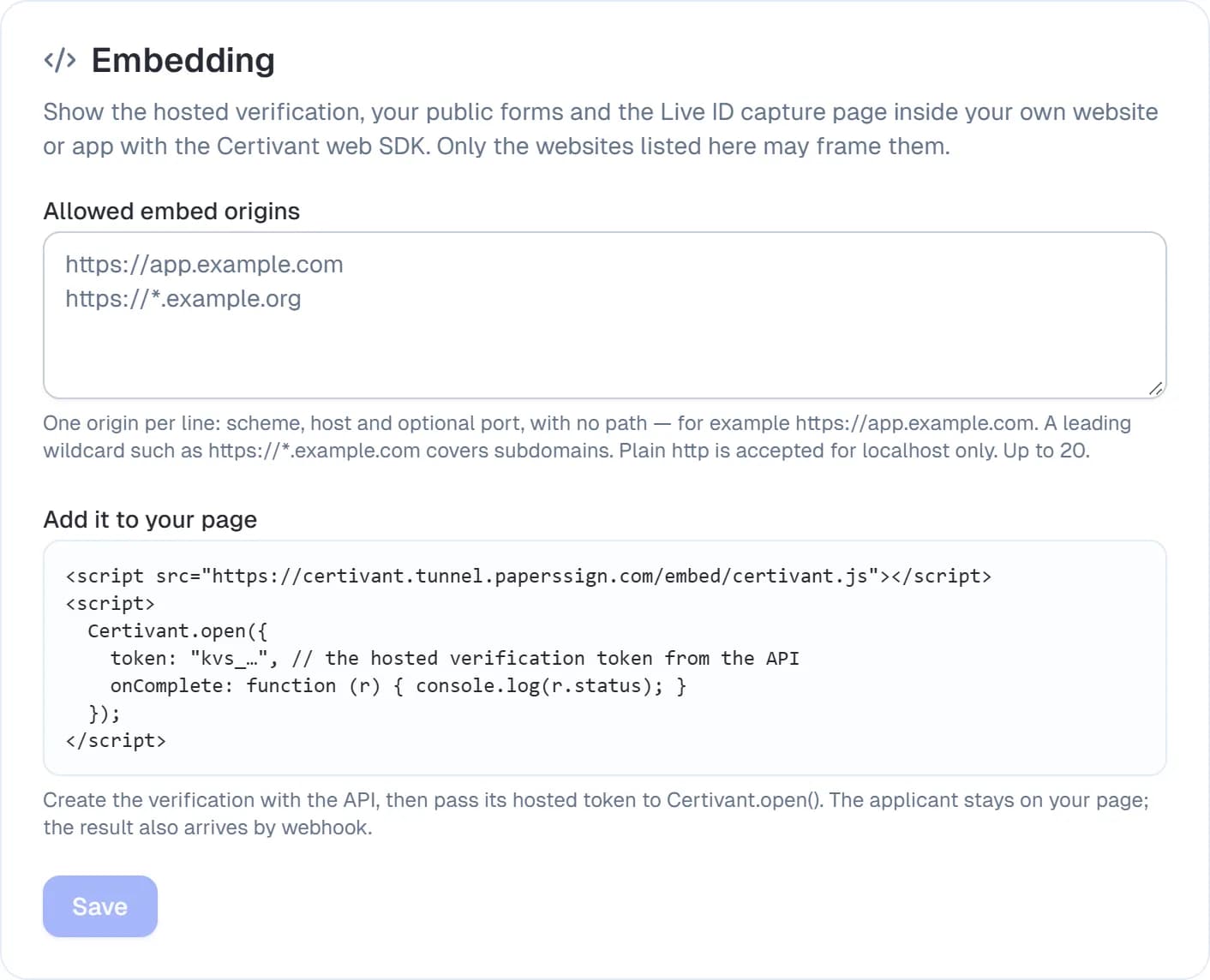
The Embedding card on Settings → KYC lists the websites allowed to show your hosted verification links, public forms and Live ID capture pages inside their own pages (with the web SDK or a plain iframe).
- Enter one origin per line —
https://app.example.com, no path. A leading wildcard (https://*.example.com) allows every subdomain. Plainhttpworks forlocalhostonly. You can list up to 20. - Any website not listed sees "refused to connect"; Certivant's own sign-in and dashboard pages can never be framed.
- Native mobile apps use a WebView and need no entry here.
The list applies to your organization's links only, and it changes what browsers accept within about a minute. If an embedded verification never loads, check the origin first — the scheme and port must match exactly.
Related
- Review KYC and KYB requests — the Document expired column and the per-document expiry date on the detail screen.
- Billing & credits
Developer — API keys & REST API
Issue and manage API keys, configure scopes, and use the Certivant REST API to create verification requests and sync KYC status programmatically from your own systems.
Reused Verifications
Accept a verification an applicant already completed with another Certivant organization — with their consent, without repeating the checks — and let your own applicants share theirs.