Automate actions with workflows
Build Certivant Automation Workflows that react to verification events — form submission, approval, score threshold — and run actions like notifying applicants or routing work to the right team.
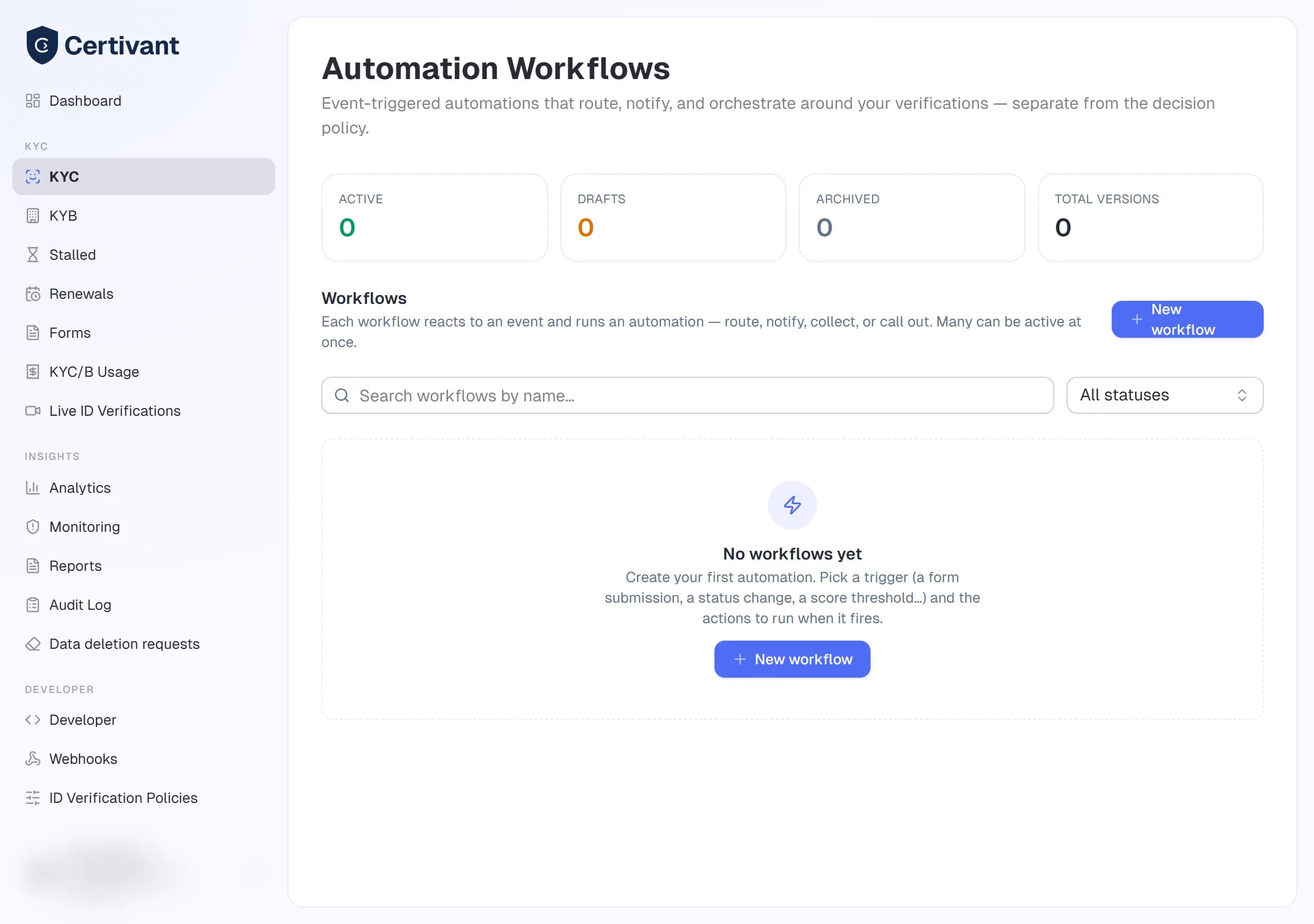
What it does
Automation Workflows let you say “when this happens, do that” — without code. Pick an event that fires the workflow (an applicant submits a form, a verification is approved, the trust score crosses a threshold…), then add the actions to run: email the applicant, assign the verification to a department, and more.
This is the second of two tools, and it's important to keep them straight:
| Tool | Job | Where |
|---|---|---|
| ID Verification Policies | Decides a verification's verdict (approve / reject / escalate) | Developer → ID Verification Policies |
| Automation Workflows (this page) | Reacts to events and runs actions around the verdict | Developer → Automation Workflows |
A workflow never changes the verdict — that's the policy's job. Workflows orchestrate around it. You can have many workflows active at once.
A bank might run a New-account form with a workflow that routes its verifications to the retail team, and a separate Mortgage form whose workflow routes to the mortgage team and emails the applicant on approval.
Before you start
- Your plan must include Automation Workflows (Pro or higher). If the Automation Workflows item in the Developer menu shows a “Requires Pro” badge, ask your owner to upgrade — see Billing & credits.
- Decide what should trigger the workflow and what it should do.
- For "assign to a department", have the team members' accounts in your organization first — see Invite members.
Key concepts
- Trigger — the single event that starts a workflow. Each workflow has exactly one.
- Filter — an optional condition on the trigger (same syntax as policy conditions, e.g.
applicant.country IN ["CA","US"]). The workflow only runs when the filter is true. It reads the event's data plus the request's facts — the same fields a Condition node sees, e.g.liveVerification.applicantAttended = falseon a call ended trigger. - Actions — the ordered steps to run when the workflow fires.
- Nodes — beyond actions, the canvas has Condition (branch true / false), Wait (pause), Parallel (fan out), Loop (repeat a bounded body), and End (a terminal) nodes — see Node types below.
- Run — one execution of a workflow against one event. Each step is recorded so you can see exactly what happened.
How it runs
flowchart LR
    A[An event fires<br/>e.g. form submitted] --> B{Matching active<br/>workflows?}
    B -->|trigger + filter match| C[Create a run]
    C --> D[Walk the actions:<br/>email · assign ·<br/>conditions · waits]
    D --> E[Run recorded<br/>with a full trace]
    B -->|no match| F[Nothing happens]
Workflows run automatically — there's no “run” button. Publishing a workflow makes it active; from then on it fires whenever its event occurs.
Steps
Open Automation Workflows
Click Developer → Automation Workflows. The dashboard lists your saved workflows with stats (active / drafts / archived). Click New workflow to start one, or a row to edit it.
Choose the trigger
Under When this happens…, pick the event:
- A form is submitted — runs when an applicant submits a verification form. The most common entry point; bind it to a specific form (below).
- A verification is approved / rejected / escalated — runs on the outcome. Use these to route or notify based on the decision.
- The trust score crosses a threshold — set a Score ≥ and/or Score ≤ bound.
- On a schedule — enter a cron expression (standard 5-field, evaluated in UTC, e.g.
0 9 * * MONfor every Monday 09:00). A scheduled run is org-level: it isn't tied to one verification, so actions that need a specific case (assign to a department, generate a certificate, schedule a live ID verification) skip, while email-to-owner, webhook, and custom SMS run. - Plus a verification is created / resubmitted, status changes, a document is uploaded (or a document fails), a check completes, EDD, monitoring alerts, expiry, inbound webhooks, and a live ID verification completing.
- Verification signals — fire on a specific phase result rather than the overall verdict: liveness passed / failed, sanctions hit / cleared, KYB match found / not found, and a reviewer decision is recorded. These let a workflow react to one signal (e.g. a sanctions hit) without waiting for the final decision.
- Risk & document signals — fire when the checks find something specific: a document is expired, a document date issue (too old, unreadable or missing date), the second AI reader disagreed with the first, a network risk (VPN, proxy, Tor or hosting IP), capture proof failed (the photo wasn't proven to come from the live camera), and a possible duplicate (the same face or document on another applicant).
- Live ID verification — the whole video-call lifecycle is available as triggers: live verification required (your decision policy asked for a call — see Require live verification), a call is scheduled, rescheduled, started, ended, completed (the host recorded a decision), cancelled or abandoned, the applicant refused recording consent, the host was transferred, a co-host or observer was invited, a participant didn't show up, the recording is ready or failed, a document was reviewed in the call, and a media-integrity warning (e.g. a virtual camera) was raised.
A decision taken in a live call also fires verification approved /
rejected / escalated, with source = "live_verification" in the event
data — so one "approved" workflow can tell a reviewer's decision
(source = "manual") from a decision recorded in the live call.
Optionally add a Filter to narrow it further — e.g. a check completes workflow can filter
check.type = "sanctions" to act on just that check.
Add the actions
Under …do this, in order, add the steps:
- Send an email — pick the recipient (the applicant, your organization owner, or a custom address) and write the subject + body.
- Assign to a department / team — choose the members who should own the verification; each becomes an applicant manager.
The action picker also offers a wider set, grouped by what it does: messaging (SMS, plus Slack / Microsoft Teams / push notifications), record-keeping (set a tag, write an audit-log entry, update metadata, generate a PDF report), orchestration (call a webhook, send a form, generate a certificate, schedule a live ID verification, trigger another workflow, request a document, screen against a watchlist), review control (escalate — see the callout below), and verification step kick-offs (start ID verification, liveness, document recapture, address verification, or KYB verification).
Every action runs for real on a published workflow, and each step is recorded in the run trace so you can see exactly what happened. A step that can't run says why in the trace instead of failing silently — for example Slack / Teams need an incoming-webhook URL, and push reaches your members' in-app inbox (applicants have none — use email or SMS for them).
The verification step kick-offs work on the existing request: start ID verification re-runs the checks from scratch, start KYB verification re-runs the registry, director match, sanctions and scoring (business requests only), and liveness, document recapture and address verification send the applicant a link to supply the new selfie or document.
Live ID verification actions
- Schedule a live ID verification — books a video call for the request and sends the applicant the invitation (email and/or SMS, with the date in the applicant's language). Pick the host (a member of your organization; empty = the request's assigned manager, else your organization owner) and an optional delay in hours — the call is then booked that far ahead, rounded to the next 15 minutes; with no delay the applicant books a time themselves. If the request already has a scheduled or running call, the step is skipped, so a workflow that fires twice never books two calls. Requires the live verification feature on your plan.
- Cancel the live ID verification — cancels the request's scheduled call (with an optional reason). A call that is already running is never cut off.
A typical setup: a Live verification required trigger → Schedule a live ID verification with a 24-hour delay → Wait until the call started → on timeout, Send an email to remind the applicant.
Workflows never change a verification's verdict — approve / reject stays with the decision policy (Tool 1). There is intentionally no approve or reject action. The one control action is escalate, which routes a request into human review via the existing, audited state machine; it does not set a verdict and never touches the score.
Save and publish
Click Save draft to store it, then Publish to arm it. Drafts don't run; only a published (active) workflow fires. Publishing freezes that version — edits create a new draft.
Attaching a workflow to a specific form
For a form.submitted workflow, bind it to one or more forms so only those forms trigger it
(otherwise every form submission fires it). This is how the bank's New-account and Mortgage
forms run different workflows. The binding lives on the workflow's trigger.
Node types on the canvas
A workflow is a small graph. Drag nodes onto the canvas and wire their handles to lay out the path a run walks. Besides the single Trigger (auto-added) and Action nodes, you have:
Conditions
A Condition node branches true / false on a DSL expression — the same grammar as a policy
condition and the trigger filter, so there's one expression engine, not two. It reads typed
facts about the event: the trust score (overallScore >= 75), the scorer's decision, applicant
fields (applicant.country IN ["CA","US"]), and per-check signals such as
checks.liveness.confidence or sanctions.isMatch. These typed presets are the same fields the
policy designer exposes, so an expression that works there works here. An un-parseable expression
fails safe to the false branch — it never silently matches.
The facts are loaded fresh from the request every time a condition runs, so a workflow that waited two days sees today's state, not the state when it started. Beyond the scores, you can test:
| Area | Example fields |
|---|---|
| Live ID verification | liveVerification.requested, liveVerification.held, liveVerification.status, liveVerification.hostDecision, liveVerification.applicantAttended, liveVerification.recorded |
| Network | network.vpn, network.proxy, network.tor, network.hosting, network.country |
| Documents | document.isExpired, document.daysUntilExpiry, document.tooOld, document.dateUnverifiable, document.readConfidence |
| Capture & fraud | capture.liveCamera, capture.tokenMismatch, fraud.duplicateDocument, fraud.duplicateDevice, fraud.duplicateIp, fraud.duplicatePhone, fraud.duplicateEmail, fraud.blocklistMatch |
| Age check | age.checked, age.result, age.method, age.estimatedAge, age.meetsMinimum, age.mismatch |
| Lists | redFlags CONTAINS "network_vpn_detected", notices CONTAINS "document_date_unverifiable" |
| Event data | source = "live_verification", hostDecision = "approved" |
CONTAINS checks whether a list holds a value (or a text holds a word, ignoring case);
NOT CONTAINS is its opposite. A field the request doesn't have never matches !=, NOT IN or
NOT CONTAINS — so document.issuingCountry != "US" stays false when no document was read,
rather than silently passing.
Waits
A Wait node parks the run and resumes it later. Four modes:
- For a fixed duration — resume after N minutes.
- Until an event arrives — park until an event (e.g. document uploaded, status changed, live ID verification started / ended / completed, recording ready) fires for the same request. Set a timeout (hours or days; default 7 days): when it elapses the run takes the node's timeout branch, or carries on down the normal path if that branch isn't connected.
- Until a condition holds — re-check a DSL predicate on a fixed cadence, resuming once it's true (with a safety cap so a never-true predicate can't park a run forever).
- During business hours — resume at the next in-window time (defaults to Mon–Fri 09:00–17:00 UTC; the days, hours and time zone are configurable, and daylight-saving changes are handled).
Parallel
A Parallel node fans out into several branches that each run their steps, then continues at an optional join once every branch has finished. Branches don't park — a Wait inside a branch passes through — so a parallel block always terminates.
Loop
A Loop node repeats a body while a DSL predicate is true, up to a mandatory iteration cap — the loop always terminates even if the predicate stays true (the cap being hit is noted in the run trace). A loop with no while-expression runs its body zero times, so a misconfigured loop can never spin.
End outcomes
An End node is a terminal — the run completes there. You can tag an End with a presentational outcome (approved, rejected, escalated, completed, or error) that's recorded on the run's terminal trace entry to label how that path finished. This tag is purely descriptive: it labels the run, it does NOT change the verification's verdict. The verdict stays with the decision policy; an End tagged approved doesn't approve anything.
Options & fields
| Concept | Values | Notes |
|---|---|---|
| Trigger events | form submitted, verification created/resubmitted, approved/rejected/escalated, status changed, document uploaded, document failed, check completed, liveness passed/failed, sanctions hit/cleared, KYB match found/not found, reviewer decision, score threshold, EDD, monitoring alert, expired, schedule (cron), inbound webhook | One per workflow. |
| Risk & document triggers | live verification required, document expired, document date issue, second AI reader disagreed, network risk detected, capture proof failed, possible duplicate | Fire alongside the verdict, from the same verification run. |
| Live ID verification triggers | scheduled, rescheduled, started, ended, completed, cancelled, abandoned, recording consent refused, host transferred, participant invited, participant absent, recording ready, recording failed, document reviewed, media-integrity warning | Each fires once per occurrence; "started" and "recording ready" are de-duplicated. |
| Node types | Trigger, Condition, Action, Wait, Parallel, Loop, End | The Trigger is the single auto-added entry point. Condition / Action / Wait / End are drag-added from the palette; Parallel and Loop are supported by the engine for richer graphs. A path that loops back on itself is refused at publish — use a Loop node. |
| Actions | Email, SMS, Slack, Teams, Push, Webhook, Assign to a department, Set a tag, Write audit log, Update metadata, Send a form, Request a document, Generate a certificate, Generate a PDF report, Screen against a watchlist, Trigger another workflow, Escalate, Schedule a live ID verification, Cancel the live ID verification, Start ID verification / liveness / document recapture / address verification / KYB verification | All run for real on a published workflow; each step (or the reason it was skipped) is recorded in the run trace. |
| Wait modes | For a fixed duration, Until an event arrives, Until a condition holds, During business hours | "Until an event arrives" parks the run; a timeout (default 7 days) takes the timeout branch. |
| Condition operators | = (or ==), !=, <, <=, >, >=, IN, NOT IN, CONTAINS, NOT CONTAINS, AND, OR, NOT | A missing field never matches a negative test. |
| End outcome (optional) | approved, rejected, escalated, completed, error | Presentational label on the run trace only — never changes the verdict. |
| Status | draft, active, archived | Many workflows can be active at once. |
Versions, restore and A/B tests
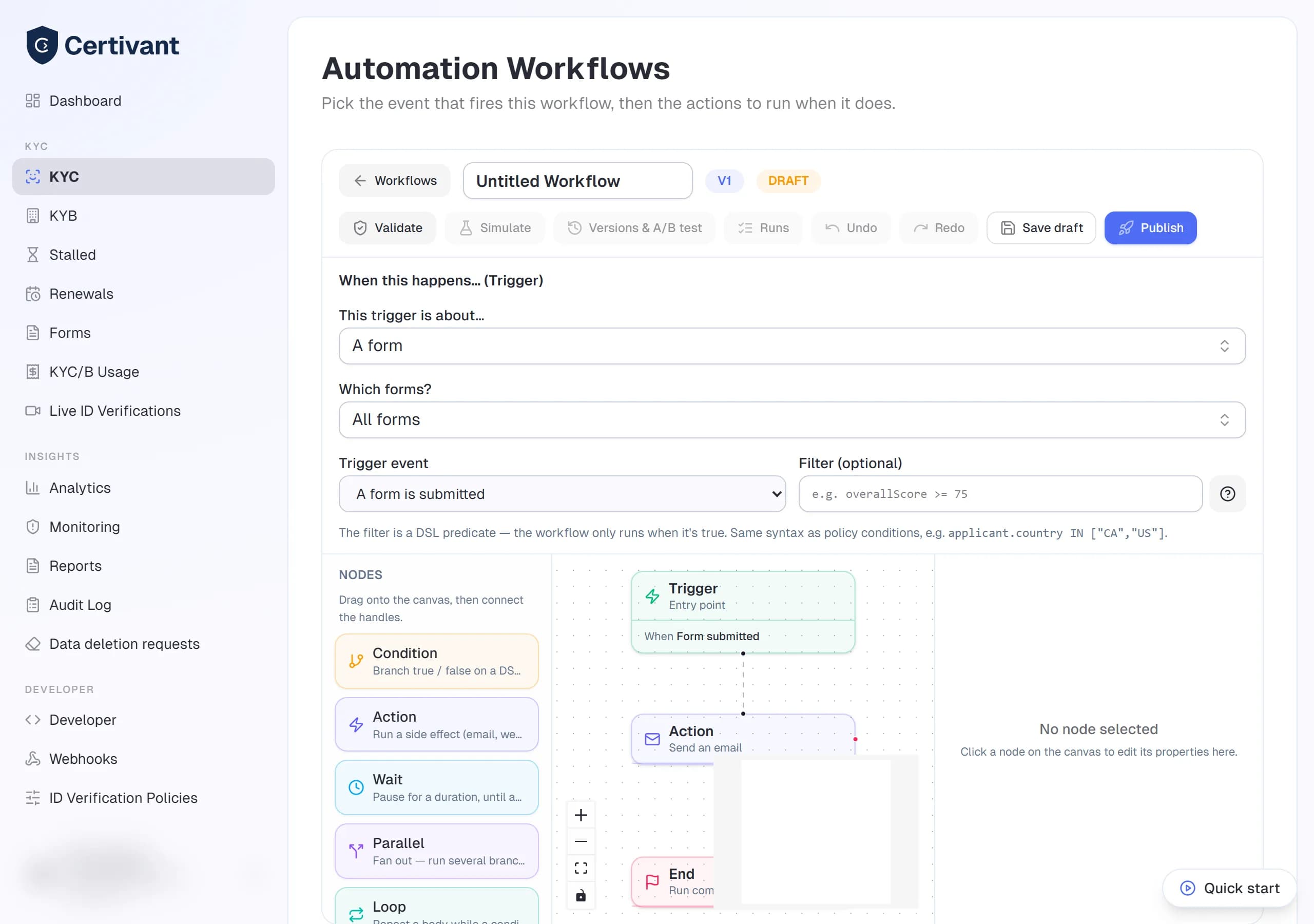
The Versions & A/B test button is greyed out until the workflow has been saved once.
A workflow is a chain of versions under one name. Saving always edits a draft; Publish freezes it as an immutable version and archives the previous active version of the same name. Every run records the version it ran on (shown in the run list and trace).
Click Versions & A/B test in the editor header to:
- See every version — draft, active, archived — and open any of them.
- Restore as new draft — copies a version (for example an older one you want back, or the active one you want to change) into a new draft of the same name. Published versions are never edited in place.
- Run an A/B test — compare the active version (A) with a challenger (B, a draft or an older version of the same workflow). Choose what share (0–100 %) of new verifications the workflow's trigger starts on B instead of A. The trigger, scope and filter of the active version still decide whether the workflow runs; the split only decides which version runs. A verification always gets the same variant, and a run finishes on the version it started on.
While a test runs the challenger draft is frozen. The results table shows, per variant, the verifications routed, how many were approved, rejected and escalated, how many reached a decision, and how many workflow runs completed or failed. Workflows never set the verdict, so use this to compare operational outcomes (for example a reminder email sent earlier). Publishing the challenger ends the test; Stop test sends every new verification back to the active version. Runs without a verification (schedules, inbound webhooks) always use the active version.
Troubleshooting
My workflow didn't run
Check, in order: it's published (active, not draft); the trigger event actually occurred;
for a form.submitted workflow, the firing form matches the trigger's form binding; and any
filter evaluated true. Open the workflow's runs to confirm whether a run was even created.
The email didn't arrive
Confirm the recipient resolved — for "the applicant", the form must have collected an email; for "the organization owner", your org needs an owner with an email on file. Check your spam folder and your email-sending configuration.
"Assign to a department" didn't assign anyone
The action needs at least one selected member, and the verification must have been created (the workflow must be triggered by a verification event). Members you pick must belong to your organization.
I published a new version — what happens to runs already in progress?
They finish on the version they started with (for example a run parked on a two-day wait still sends its reminder). New events run the new version. Archiving a workflow is the only way to stop its in-flight runs.
"Schedule a live ID verification" was skipped
Open the run trace: the step says why. The usual reasons are that the request already has a scheduled or running call (a second one is never booked), the chosen host has left your organization, or your plan doesn't include live verification.
A workflow ran more often than I expected
A workflow runs at most 10 times per request in 24 hours (beyond that the event is skipped and
logged as a possible loop), and workflows calling each other through Trigger another workflow
stop after 5 levels. If an event fires repeatedly (for example status changed), add a
Filter such as status = "ESCALATED" so the workflow only reacts to the change you care about.
I don't see "Automation Workflows" in the menu
It's under Developer and is a Pro feature. If it shows a “Requires Pro” badge, ask your owner to upgrade on Billing & credits.
Related
- Design a risk policy — the other tool: decides the verdict.
- Forms — bind a
form.submittedworkflow to a form. - Webhooks — for sending verification events to your own systems.
- Invite members — add the people a workflow can assign work to.
Design a risk policy
Use the Certivant visual Workflow Policies Designer to build custom KYC/KYB decision rules — conditions, thresholds, and approve/reject/escalate outcomes — then simulate and publish versioned policies.
Invite teammates
Add teammates to your Certivant organization by email invitation or admin-created accounts, assign their role, and manage pending invitations and removals.