Forms overview
Learn what Certivant forms are, when to use KYC, KYB, or custom types, and how to manage your org's forms list.
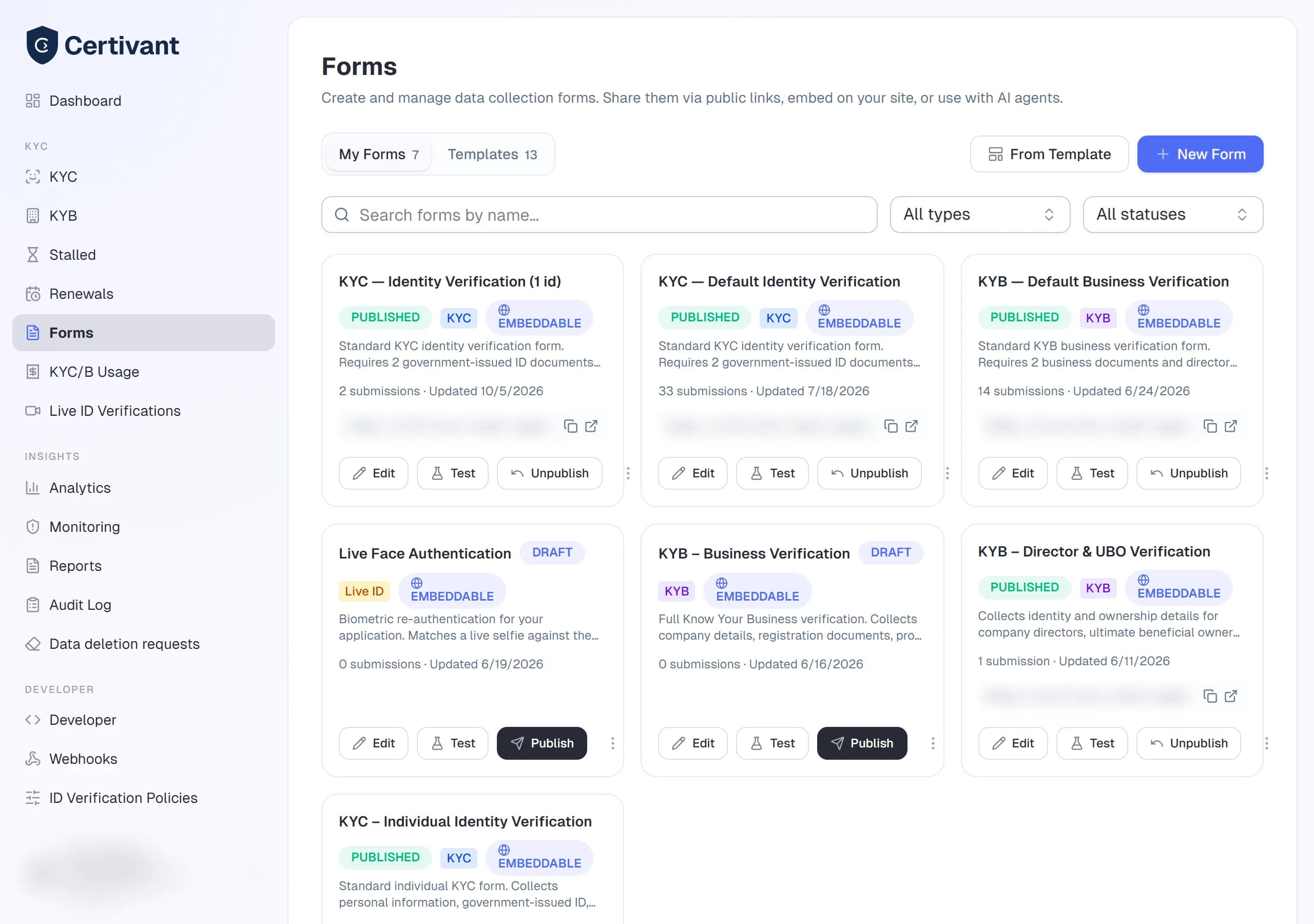
What it does
A form is a reusable verification template. When you send a KYC or KYB request you can attach a form so the applicant fills out the right fields, uploads the right documents, and answers any custom questions you've defined. Without a form, the applicant gets the org's default document checklist.
You'll typically have a small library:
- One or two KYC forms (e.g., "Standard ID + Selfie", "High-risk ID + Proof of Address").
- One or two KYB forms (e.g., "Sole prop", "Corporation with beneficial owners").
- Sometimes a custom form for non-verification data collection (e.g., a contract questionnaire that runs alongside KYC).
Where it lives
Forms in the left sidebar.
The Forms list shows every form your org has built, with columns for:
| Column | Notes |
|---|---|
| Name | Click to open the builder. |
| Type | kyc, kyb, or custom. |
| Status | draft, published, or archived. Only published forms appear in the Send-request dialog. |
| Public slug | If the form has a publicly-embeddable URL, the slug shows here. |
| Submissions | Lifetime count of completed submissions. |
| Last updated | When the form's structure was last edited. |
Filters
Type, status, owner, and free-text search across name + description.
Actions
- New form — opens the Forms builder on a blank template.
- Duplicate — copy any existing form as the starting point for a new one.
- Archive — moves a form to
archivedstatus. Existing submissions are kept; the form no longer appears in the Send-request picker. - Open public link — for published, public forms only; opens the publicly-accessible URL in a new tab.
Form types explained
For verifying individuals. Standard fields: full name, date of birth, nationality, government ID, selfie. You can add custom fields (phone number, address, occupation, source of funds) on top.
Pick this type whenever the applicant is a person (B2C signups, individual contractors, real-estate buyers).
For verifying businesses. Standard fields: legal entity name, registration number, country of incorporation, business documents (certificate of incorporation, registered address). Plus the beneficial owners section that lets you collect KYC on each individual who owns 25%+ of the business.
Pick this type for B2B onboarding (vendor verification, partner due diligence, business banking).
For everything else. Custom forms aren't tied to a KYC/KYB lifecycle — they're general-purpose data collection. Examples: contract questionnaire, AML risk-assessment survey, conflict-of-interest disclosure.
A custom form doesn't create a verification request, doesn't run automated checks, and doesn't appear in the KYC/KYB lists. Submissions land in the form's Submissions tab.
Visibility
Each form has a visibility setting that controls who in your organization can use it in the Send-request dialog and see its submissions:
- Org (default) — every member of your organization can see and use the form.
- Team — only members of a specific team can see it. Useful when a brokerage has different forms per producer.
- Specific users — only the listed users can see it. Useful for compliance reviewers who keep a "high-risk applicant" form private.
Change the visibility under Form settings → Visibility in the builder.
Default managers
Every form has an optional defaultManagerIds list. When an applicant submits via this form, the first entry becomes the primary manager (drives data isolation), and the rest are added as secondary managers. Saves you picking the same managers every time a new applicant comes through a specific form.
Related
- Forms builder — design fields and document requirements.
- Forms preview & publish — test before going live; share the public link.
- Send a verification request — attach a form when inviting an applicant.
Invite teammates
Add teammates to your Certivant organization by email invitation or admin-created accounts, assign their role, and manage pending invitations and removals.
Forms builder
Use the Certivant drag-and-drop form builder to design KYC and KYB intake forms with custom fields, document requirements, and conditional logic.