Preview & publish a form
Test your Certivant form end-to-end in preview mode, publish it to the Send-request picker, share a public link, and roll out updates safely.
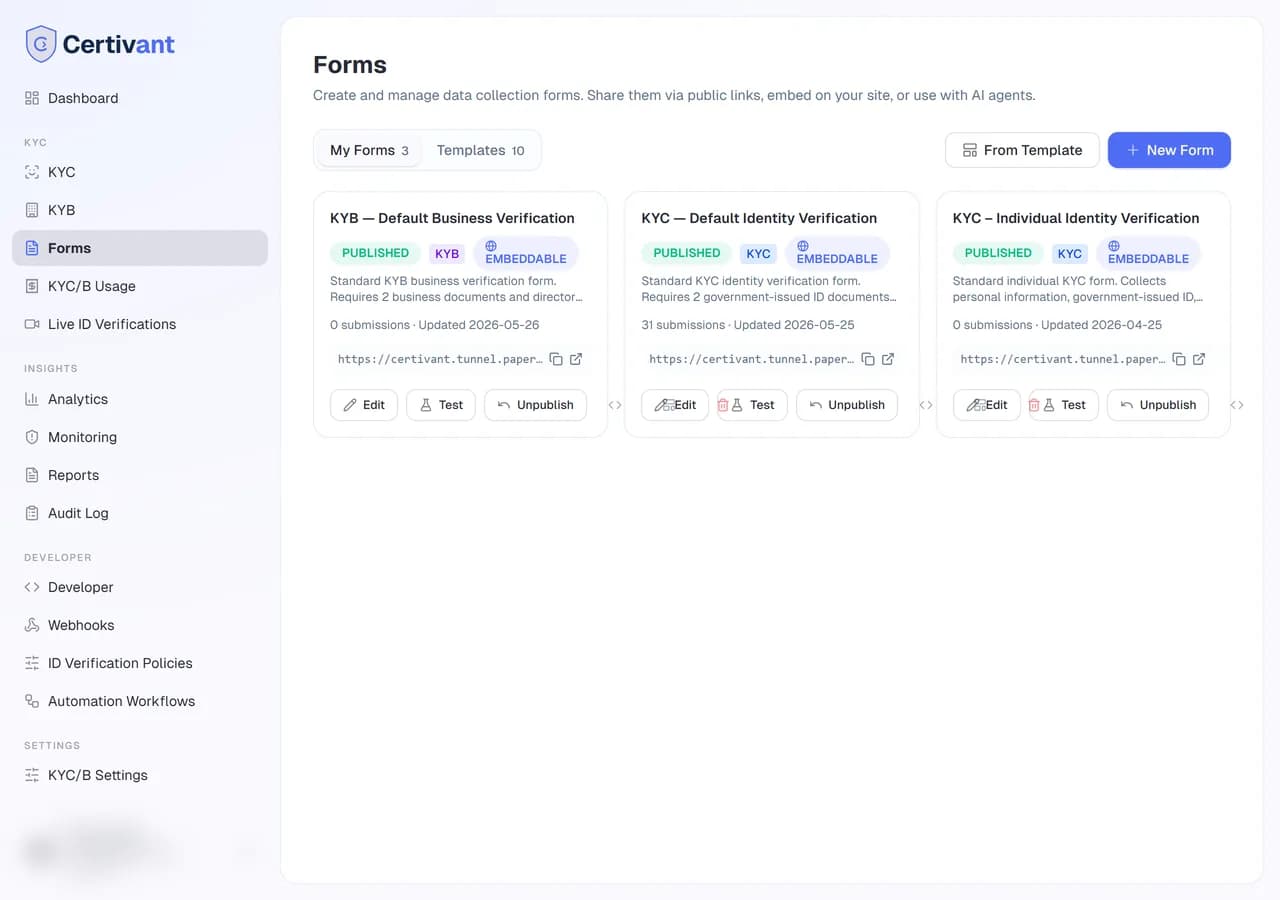
What it does
A form goes through three states:
flowchart LR
    Draft --> Preview[Preview]
    Preview --> Published
    Published -- "Archive" --> Archived
    Published -- "Edit + republish" --> Preview
- Draft — only visible to you in the builder. Not selectable in the Send-request dialog.
- Published — available in the Send-request dialog, and (optionally) reachable via a public URL.
- Archived — hidden from the picker; existing submissions are preserved.
The Preview is a stage between draft and published where you walk through the form as an applicant to catch issues before real applicants do.
Preview
In the builder, click Preview. A modal opens with the form rendered exactly as your applicant will see it. Fill it out, upload sample documents, watch the conditional logic fire. Two things to verify:
- Required fields behave correctly. Try to submit with one blank — you should see the inline error.
- Conditional fields appear/disappear when their predicate flips.
Preview doesn't create a real submission; nothing is stored.
Publish
When the preview looks good:
Click Publish
The button is in the top-right of the builder. Confirm in the dialog.
The form moves to published status
It now appears in the form picker on the Send-request dialog (filtered by type — KYC dialog shows KYC forms, KYB dialog shows KYB forms).
(Optional) Mint a public URL
If you want applicants to start the form without you sending them an email invitation, open Form settings → Public link and toggle Public on. The form gets a random URL slug like acme-realty/standard-kyc-x9c2. Anyone with that URL can start the form.
Public forms create a verification request when submitted, attributed to whichever defaultManagerIds you configured.
Editing a published form
Edits to a published form are not automatically live. Here's the safety mechanic:
- You click into the form. It opens in
publishedstatus. - You make edits. Status quietly switches to
published-with-pending-changes— the public-facing form still serves the old version while you work. - When you're done, click Publish again. The new version goes live. Applicants who started the old version mid-edit complete it on the old fields (so they don't lose their progress).
- If you'd rather revert your edits, click Discard changes — the live form is unaffected.
Want to do a bigger redesign without risking breakage? Duplicate the form, redesign the duplicate, publish it under a new name, then Archive the old one once you're confident. You preserve a clean audit trail of which version each historical submission used.
Public-link options
Under Form settings → Public link:
| Option | Notes |
|---|---|
| Public slug | The URL-safe identifier. Auto-generated; click Regenerate to mint a new random slug (invalidates the old URL). |
| Embeddable | When on, the form can be loaded inside an <iframe> (e.g., on your website). When off, browsers block the iframe load. |
| Success URL | After the applicant submits, redirect them to this URL (your website's "thanks" page). Optional. |
| Wait for the result before redirecting | KYC / KYB forms. After submitting, the applicant stays on a "Your verification is in progress, please wait" page until the decision is ready (up to 3 minutes). They are then sent to the Success URL with ?verificationStatus= set to approved, rejected, in_review, received or pending (still running after 3 minutes). Without a Success URL, a final message is shown: verified; not completed — please contact your company, which has also been notified; or not confirmed yet — please contact your company. Embedded with the web SDK, the complete event carries the decision (approved, rejected, escalated or submitted) instead of submitted right away. Off by default. |
| Webhook URL | Fire a POST to this URL when a submission completes. Per-form webhook; runs in addition to the org-wide webhook. |
| Rate limit | Max submissions per hour from one IP. Useful when the form is public and you're worried about abuse. Default 10/hour. |
Archive
When the form is no longer needed:
- Existing submissions and verification requests are preserved.
- The form no longer appears in the Send-request picker.
- The public URL stops working (returns 410 Gone).
- You can un-archive any time.
Steps — go from blank to live, end to end
Build the form in the forms builder.
Preview — walk through it. Fix any rough edges.
Publish.
Optional: under Form settings → Public link, toggle public on, copy the URL, share it (your website, email signature, partner integrations).
Test once more by clicking the public URL yourself and submitting. The submission appears in your KYC or KYB list immediately.
Watch the first few real submissions for issues that didn't surface in preview (typos, ambiguous wording, missing fields).
Troubleshooting
My form isn't in the Send-request picker
Check it's published, not draft. Also check its type matches the dialog you're in (KYC dialog only shows KYC forms).
Public link returns 410 Gone
The form was archived. Un-archive from the Forms list (Actions → Un-archive).
Embedded iframe doesn't load
Toggle Embeddable on under Form settings → Public link. Without it, the browser refuses to render the form inside another site's iframe.
Edits aren't going live
You're seeing the cached "published-with-pending-changes" version. Click Publish again to push your changes live.
Related
- Forms overview
- Forms builder
- Webhooks — receive submissions in your own systems.
Forms builder
Use the Certivant drag-and-drop form builder to design KYC and KYB intake forms with custom fields, document requirements, and conditional logic.
KYC/B Analytics Dashboard
Track verification volume, approval rates, decision mix, processing time, and risk-score distribution using the Certivant Analytics dashboard.