Invite teammates
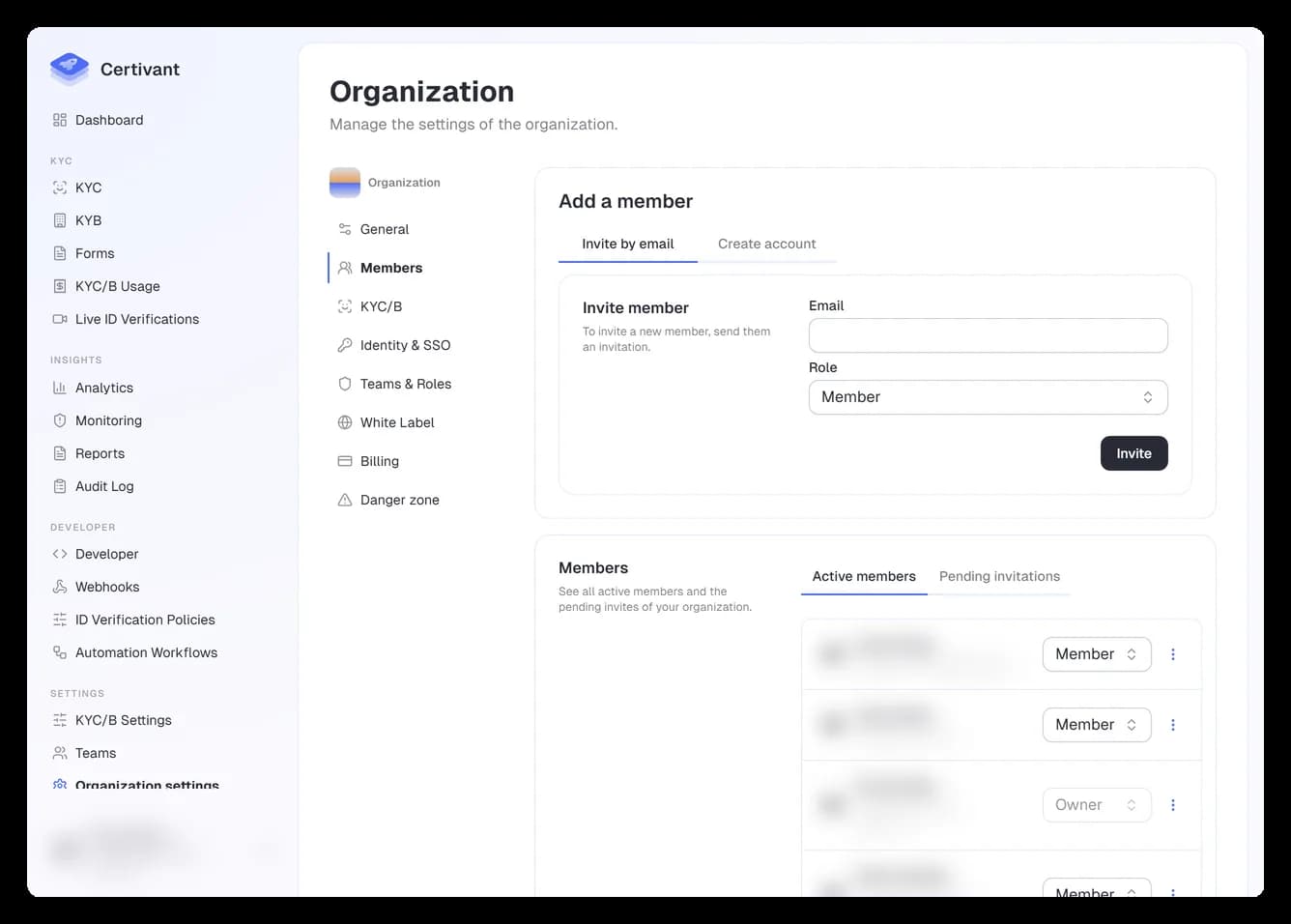
Add teammates to your Certivant organization by email invitation or admin-created accounts, assign their role, and manage pending invitations and removals.
What it does
Adds another person to your organization so they can sign in and start working. Two paths:
- Invite by email — the most common case. We send them an email with a link. They click it, set up their own account (or sign in if they already have one), and they're in.
- Admin-create an account — for situations where you'd rather provision the account yourself with a pre-set password (and email them the credentials out-of-band). Useful when onboarding multiple staff at once or when you can't rely on email delivery.
You also assign their organization role at invite time — admin or member. See Roles at a glance for the difference.
Before you start
- You must be the org
owneroradmin. Members can't invite. - Your plan's seat limit must have room. Check the Seats X/Y badge on your org card in the personal dashboard, or under Settings → Billing. If you're at the cap, you can't add more members until you upgrade or remove someone.
- For the email-invite path, your platform's email provider must be configured (super-admin concern). If invitation emails aren't arriving, that's the first thing to check.
Steps — invite by email
Open Members settings
Settings → Members in the left sidebar. You'll see the current member list plus an Add member card at the top.
Open the Add Member dialog
Click Add member to open the dialog. It has tabs: Existing, Invite, Create.
Enter their email + role
- Email — what to send the invite to.
- Role on join —
Member(default) orAdmin. You can change it later.
Send
Click Send invitation. They get an email. The invite expires in 48 hours — re-issue if they miss the window.
Steps — admin-create the account
Use this when you'd rather hand the person their login directly (corporate IT scenario, or you don't want to rely on email delivery).
Open Settings → Members → Add member.
Switch to the Create tab.
Fill Full name, Email, and pick the role.
(Recommended) Leave Require password change on first login ticked. The user gets a one-time auto-generated password; on first sign-in they're forced to set their own.
Click Create account.
The auto-generated password appears in a toast for ~20 seconds AND is copied to your clipboard. Share it with the user via a secure channel (Signal, password manager, in-person). Welcome email delivery is automatic where configured; if not, share manually.
Adding an existing org user to a team
If the person is already in your organization and you want to also add them to a team you manage, use the Existing tab. Pick them from the list and assign their team role (team_owner / team_admin / team_user). See Roles at a glance for what each team role can do.
Removing a member
From Settings → Members, find the person, click the kebab menu on their row, and choose Remove member. Confirm.
Removing a member doesn't delete their applicant data — verifications they originated remain in the system and become orphaned. Reassign their applicants first (see Review verification requests) if you want continuity of management.
The removed user can no longer sign into your organization. If they were a member of multiple orgs, their other memberships are untouched.
Pending invitations
The Members page has a small list of currently-outstanding invitations near the top. From there you can Resend (re-trigger the email with a fresh 48-hour window) or Cancel (revoke the invite — the link in the email stops working).
Options & fields
| Field | Required | Notes |
|---|---|---|
| yes | Lowercased on save. Must be unique within your org. | |
| Org role | yes | Member (default) or Admin. Changeable later. |
| Team role | only on Existing + Create tabs | When adding into a team — team_user (default), team_admin, team_owner. |
| Require password change | only on Create tab | Recommended ON. Forces the user to pick their own password on first sign-in. |
Troubleshooting
"Add member" button is greyed out / missing
You're at your plan's seat limit, or you're not org admin/owner. Check the seat badge on your dashboard.
Invitation email never arrived
- Check spam.
- Resend from the pending-invitations list.
- Ask your super admin to verify the platform's email provider is healthy (Admin → Settings → Email → Test email).
The user already exists in another org
That's fine. When they accept the invitation we add them as a member of your organization too — they'll see both in their org switcher.
I created an account but never wrote down the password
Open Settings → Members, find the user, click the kebab menu, and choose Reset password. They'll get a new auto-generated password.
Related
- Roles at a glance
- Billing & credits — seat limits are tied to your plan.
Automate actions with workflows
Build Certivant Automation Workflows that react to verification events — form submission, approval, score threshold — and run actions like notifying applicants or routing work to the right team.
Forms overview
Learn what Certivant forms are, when to use KYC, KYB, or custom types, and how to manage your org's forms list.