Ongoing Monitoring and AML Alerts
Continuously screen approved applicants for sanctions hits, adverse media, and PEP status changes using Certivant ongoing monitoring and the alert queue.
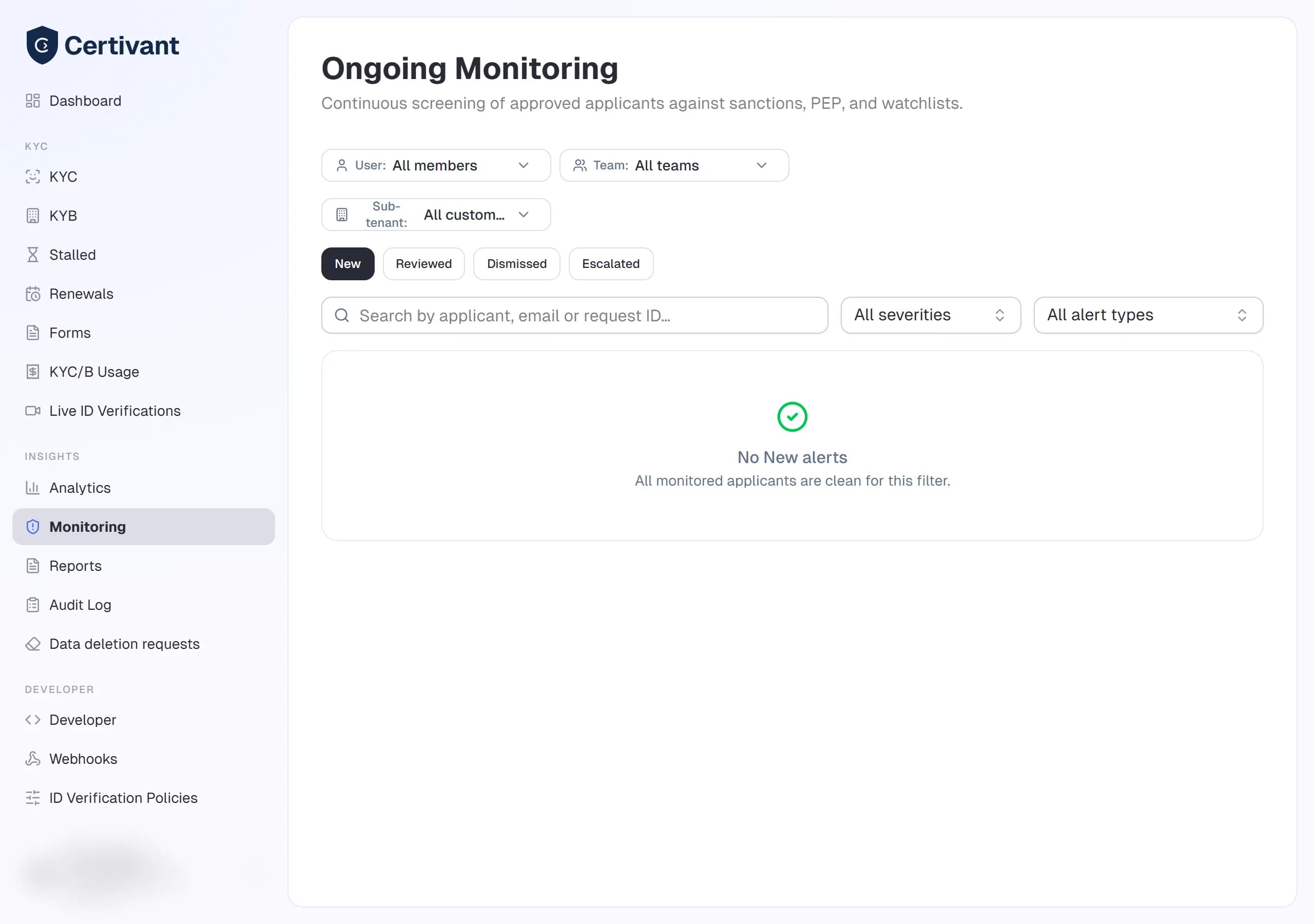
What it does
Verification is a moment-in-time check. Monitoring is continuous — once an applicant is approved, we keep them on a watchlist and re-screen them against sanctions, adverse media, and PEP databases on a schedule. If anything changes (a new sanction designation, a new news story, a politically-exposed-person status update), an alert lands on the Monitoring page and we email the applicant's primary manager.
Think of verification as "is this person OK to onboard today?" and monitoring as "is this person still OK?"
Where it lives
Insights → Monitoring in the left sidebar.
Enabling monitoring
Monitoring is a plan feature (Ongoing Monitoring) and you choose who is monitored:
- Per verification — open an approved verification and use the Ongoing AML monitoring card: pick how often the person is re-screened (daily, weekly or monthly, on top of the daily checks below) and press Start. Stop ends it; a paused record can be resumed. The same is available from the API:
POST/GET/DELETE /api/v1/kyc/requests/:id/monitoring(developer docs). - By default, for everyone you approve — Settings → Fraud prevention → Rules → Enrol approved verifications in ongoing AML monitoring automatically. Switch it off to monitor only the people you choose. An organization that never touched the setting keeps the original behaviour: every approval is enrolled.
An automatic enrolment that cannot go ahead (the plan doesn't include monitoring, or there is no credit for a person beyond the included quota) is skipped and written to the audit log (monitoring.enroll_skipped); a manual one tells you why (not in your plan, or not enough credit).
Cost
Monitoring is billed per monitored person per year: one unit when a person is enrolled, and another each year they stay enrolled. Your plan includes a number of monitored people per year (or is unlimited but counted); beyond that each unit is charged at the Ongoing AML monitoring price, from your credit — the card on the verification and Settings → Credits & usage show the figures. If a yearly renewal can't be paid for lack of credit, monitoring for that person is paused (audit event monitoring.paused_for_credit) instead of continuing unpaid; add credit and press Resume.
How people are re-screened
| What | When |
|---|---|
| New list entries | Every day. The sanctions lists are synced overnight; each entry added since the last run is matched against your monitored people by name (without reading anyone's data in the clear), and every candidate is re-screened at once. A new designation is therefore found within about a day. |
| Everyone, in full | On a risk-based schedule: every 30 days for a low-risk person, 14 for medium, 7 for high and daily for very high (see risk rating). This run also refreshes the person's PEP tier and adverse media status. |
An alert is raised only for something new: a sanctions hit that wasn't open, a person who became a PEP, a PEP who moved to a stricter tier, or adverse media that wasn't there before. A status that gets better (a PEP leaving office) is recorded but doesn't alert. The decision-time result of the verification is the starting point, so re-confirming it stays silent.
PEP tiers
A PEP hit now carries a tier, shown on the alert and in the verification, usable in policies as sanctions.pepTier, and sent in webhooks (pepTier):
| Tier | Who |
|---|---|
| 1 | Heads of state and government, ministers, top judges, ambassadors, senior military commanders, central-bank governors, chiefs of state-owned enterprises |
| 2 | Other national officials: legislators, judges, senior civil servants — also used when a PEP's position isn't known |
| 3 | Regional and local officials: governors, mayors, councillors |
| 4 | Relatives and close associates of a PEP |
When the screening source classifies the person itself, that class is used. Otherwise Certivant reads the person's listed positions and topic tags — a heuristic, so always read the position on the alert before deciding. A higher-risk tier counts for more in the customer risk rating: tiers 1 and 2 carry the full PEP weight, tier 3 two thirds, tier 4 half.
Adverse media is flagged when a hit's topics say the person is wanted, charged, or the subject of a regulatory action. It is available as sanctions.adverseMedia in policies and workflows and raises a monitoring alert. It does not change the trust score.
The names of the underlying list vendors are never shown or sent: alerts, audit entries and webhooks say what was screened (sanctions, PEP, adverse media), not who answered.
Alert types
| Type | Trigger | Common follow-up |
|---|---|---|
| Sanctions hit | The applicant matches a newly-added OFAC / EU / UN / UK sanctions list entry. | Manual review immediately. If the match is real, freeze the relationship and file a SAR. |
| PEP change | The applicant became a PEP, or moved to a stricter PEP tier (the alert shows the tier). | Update your AML risk score and apply enhanced due diligence per your policy. |
| Adverse media | A hit's topics (wanted, charges, regulatory action) mention the applicant in a negative context. | Read the source, decide if it is about your applicant or a same-named person, escalate if real. |
| Document expiry | The applicant's government ID expires in the next 30 days. | Send a resubmission request for an updated ID. |
The alert queue
The Monitoring page shows every active alert, with:
| Column | Notes |
|---|---|
| Applicant | Name + email. Click to open their full verification record. |
| Alert type | Sanctions / PEP / Adverse media / Document expiry. |
| Severity | High / Medium / Low. Calculated from the source confidence + match strength. |
| Triggered at | When the alert fired. |
| Status | open, under-review, resolved, dismissed. |
| Action | Resolve / Dismiss / Escalate. |
Filters
By type, severity, status, date, owner/team. Partner orgs also get a Sub-tenant filter (once requests carry sub-tenant tags) to narrow alerts to one of your end customers — see partner attribution.
Steps — handle an alert
Click into the alert
The alert detail shows the source data (which list / article / record), the match confidence, and the applicant's verification history.
Verify the match
Sanctions and adverse media match on name + identifiers. False positives are common, especially for common names. Cross-check date of birth, nationality, and document numbers between the alert and your applicant.
Decide
- Resolve — you've reviewed the alert and taken whatever business action is needed (enhanced DD, account freeze, SAR filing). The alert moves to
resolvedand your decision + note are recorded for the audit log. - Dismiss — the alert is a false positive. Record the reason; the system uses dismissed feedback to tune match thresholds.
- Escalate — kick this up to a senior compliance reviewer. Pick the reviewer from a list of org members with the
aml.alerts.reviewpermission.
Document the decision
Every action records a note in the audit log. Be terse but specific — "DOB mismatch (applicant 1990, OFAC entry 1972) — false positive" beats "not a match."
SLA & escalation
Alerts not actioned within the SLA window (set under Settings → KYC/B → Monitoring SLA) appear in the Overdue filter. They don't auto-resolve — they just become more visible so you don't forget.
Stopping monitoring
If you no longer need to monitor an applicant (they offboarded, they closed their account, you're cleaning up cost):
- Open the applicant's verification request detail.
- Ongoing AML monitoring card → Stop.
Historical alerts are preserved; no new ones will fire. A year already paid is not refunded.
Troubleshooting
Lots of false-positive alerts
Three common causes:
- Name normalisation is off. Make sure your applicants enter their legal name as it appears on their ID, not nicknames.
- DOB missing on the applicant. Sanctions matching weights date-of-birth heavily — without it, every name match scores high.
- Screening too broad — under Settings → KYC/B → Sanctions provider, you may have sanctions, PEP and adverse-media screening all on. Tighten to your regulatory requirements.
A real sanctions hit on a customer I trust
Don't dismiss it. Even false hits in your gut judgment must be reviewed and documented before resolution — that's the regulator-required trail. Resolve with a detailed note explaining why you concluded it wasn't a match.
Monitoring is enabled but I get no alerts
The data sources update at most once per day; alerts can take 24h to fire. If you're sure something should have triggered, check Settings → KYC/B → Monitoring providers to confirm a provider is configured and enabled.
Related
- KYC list & detail — verify a person in the first place.
- Reports — generate compliance reports including monitoring activity.
- Audit log — every monitoring action is in here.
KYC/B Analytics Dashboard
Track verification volume, approval rates, decision mix, processing time, and risk-score distribution using the Certivant Analytics dashboard.
Compliance Reports and Scheduled Exports
Generate, schedule, and export structured compliance and operational reports for your KYC/B verification activity using Certivant Reports.