Teams & Roles
Organise your Certivant workspace into teams with data-isolation modes (strict, open, owner-only) and create custom roles with fine-grained permission bundles.
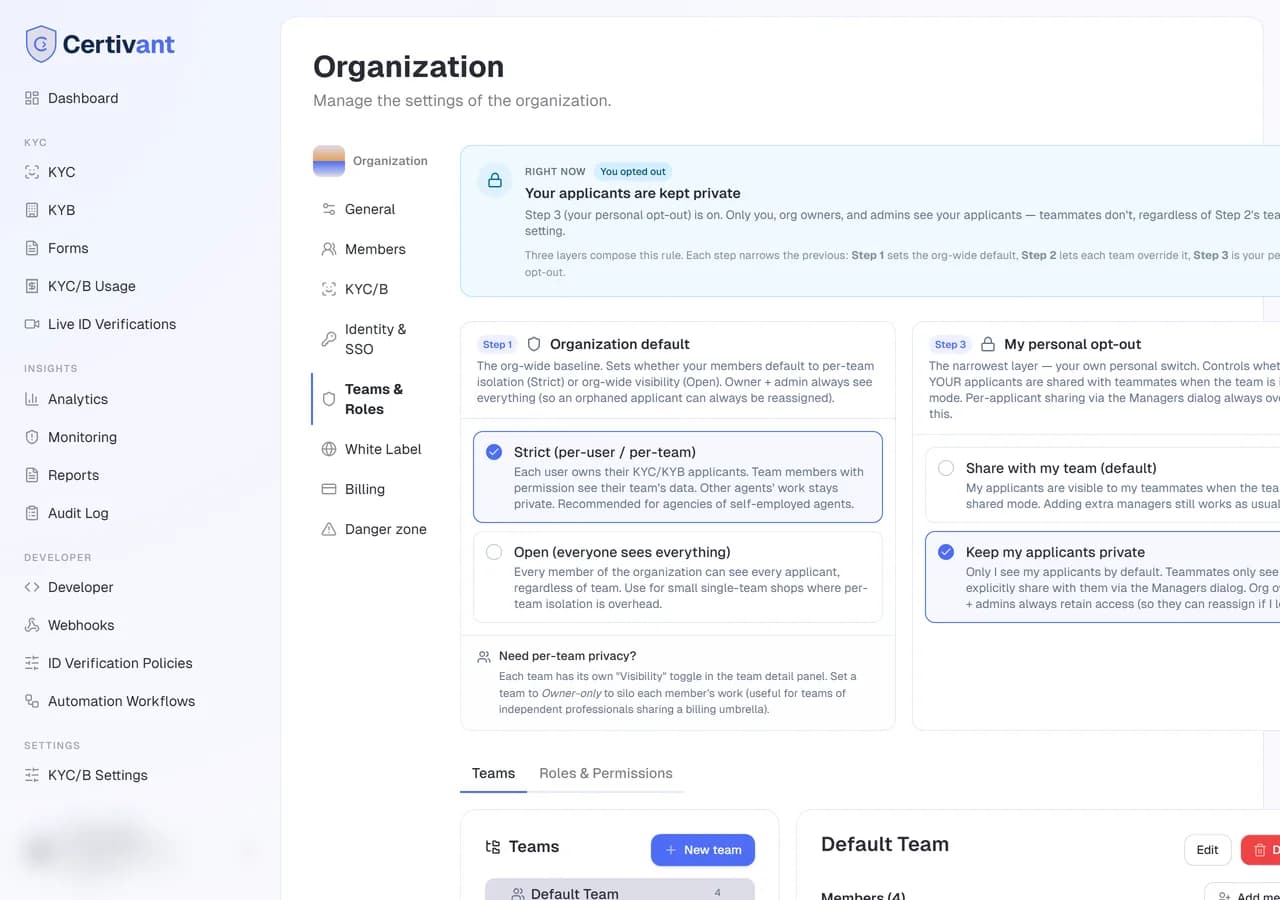
What it does
The Teams & Roles page combines two related-but-distinct controls:
- Teams — sub-groups inside your organization, each with their own members, data visibility, and (optionally) their own forms.
- Roles & Permissions — custom roles that grant fine-grained permission bundles on top of the basic
owner/admin/member.
Both live under Settings → Teams & Roles, as separate tabs.
When you need teams
If your organization is a single integrated business (one back-office, one shared workload, everyone sees everything), you don't need teams. The default behaviour — owner + admin + members all see the same applicants — works.
You need teams when you're an agency: multiple semi-independent professionals operating under one legal umbrella. Real-estate brokerage, mortgage agency, insurance shop. Each professional has their own clients and shouldn't see the others' work by default. Each one is a team_owner of their team; their assistant is a team_user.
Data isolation modes
The DataIsolationCard at the top of the Teams page is the most important setting. It has three modes:
flowchart LR
    Strict["Strict (per-user / per-team)<br/>Default for agencies"] -.-> Open
    Open["Open (everyone sees everything)<br/>Default for integrated businesses"] -.-> Strict
    Strict -.-> OwnerOnly["Owner-only<br/>For teams of independents"]
| Mode | Who sees what |
|---|---|
| Strict (default) | Each user owns their KYC/KYB applicants. Other agents' work is hidden. Org owner + admin always see everything (so they can re-assign orphans). |
| Open | Every org member sees every applicant. Recommended for small single-team shops where per-user privacy is overhead. |
| Owner-only (per-team override) | Even team owners only see their own work. The team behaves as a billing/membership grouping with no cross-member visibility — useful for teams of independent lawyers / accountants under a shared umbrella. |
Strict is the default for agency-style orgs. Owner-only is per-team — set under each team's detail page.
How the three layers compose
There are three layers in priority order:
- Org default (the DataIsolationCard) — your baseline.
- Per-team override (a team's Visibility setting) — narrows for teams of independents.
- Personal opt-out (the MyKycPrivacyCard on the Teams page) — each individual user can choose to keep their own applicants private even if the org is in Open mode.
The page surfaces all three with a "Right now" banner that computes the effective rule. When a stricter upstream layer is in effect, the dependent card is dimmed with an explanation.
Teams tab
Team tree
The left column shows the team hierarchy as a tree. Top-level teams under the organization root; sub-teams nested below. Click any team to load its detail in the right pane.
Team detail
The right pane has:
- Name + description — edit by clicking. Admins or team owners can rename.
- Members section — every member of the team with their team role (
team_owner/team_admin/team_user). Add, remove, change role. See Inviting teammates for the dialog details. - Team visibility — the per-team mode override (Team-shared / Owner-only).
- Sub-teams — list of any children. Click to drill in.
Common workflows
team_owner.team_owner for the producer, team_user for the assistant.Their applicants stay where they were — only the team mapping changes. To also reassign applicants, do that from the KYC list.
Roles & Permissions tab
This tab is hidden unless you have the team.custom_roles permission. Owners and admins always have it.
Every page and action in the workspace is controlled by a permission. When a member's role doesn't include it, the entry disappears from the navigation, the page shows "Ask your administrator for permission", and the API refuses the call. Owners and admins always have every permission.
Permissions decide what someone can do. Which records they see is still set by ownership and Teams: their own work, applicants they manage, records shared with their team, and everything under a team they lead. For an org-wide view (auditor, compliance officer), add them to the top-level team or switch the isolation mode to Open.
Built-in roles
| Role | Default permissions |
|---|---|
| Owner | Every permission. Can't be changed. |
| Admin | Every permission. Can't be changed. |
| Member | View KYC/KYB, case comments, audit log, CSV export, live verifications (view, schedule, host), forms, AML alerts and monitoring, analytics, reports, usage. |
Predefined roles
Every organization gets these ready-made roles, so you can onboard your team without building roles from scratch. They're marked System: you can't delete or rename them, but you can change their permissions or Clone one into a custom role.
| Role | For | Key permissions |
|---|---|---|
| Compliance officer (MLRO) | Programme oversight | Manual and second review, manage requests, document export, audit log, AML, verification policies, KYC/B settings, reports |
| KYC reviewer | Analysts | View, manage requests, manual review, comments, audit log, AML alert review |
| Senior reviewer (approver) | Dual approval | Reviewer permissions + second review, document export, recordings, monitoring |
| Live verification agent | Live ID verification agents | View requests, schedule and host live ID verification sessions, comments |
| Support | Applicant help desk | Send and resend requests, resubmissions, reminders, comments, schedule live ID verification sessions (no decisions) |
| Sales | Customer onboarding | Send KYC/KYB requests, form links, schedule live ID verification sessions, analytics |
| Secretary / assistant | Admin support | Send requests and reminders, book live ID verification sessions |
| Report analyst | Reporting | Read-only analytics, usage, regulatory reports, CSV export |
| Auditor (read-only) | Internal and external audit | Read-only cases, audit log, alerts, reports, recordings |
| Developer | Integration | API keys, webhooks, Live ID Validation keys, all forms (incl. submissions), automation (workflows and risk policies), analytics, reports and usage; sees and creates verifications (masked data, no ID pictures) and the audit log to test the integration |
| Billing manager | Finance | Billing details, invoices, credits, usage |
| Read-only viewer | Anyone who only needs to look | View KYC/KYB, live verifications, analytics |
Custom roles
Settings → Teams & Roles → Roles & Permissions → New role, or Clone an existing role.
Name it (for example "Compliance reviewer") and add a description.
Tick the permissions to include. They're grouped by area, and each group has a Select group shortcut.
Save. Assign the role from the Members tab.
Some permissions are as powerful as an admin, because they decide who can do what: Custom roles, Manage members, Identity & SSO, Security settings and KYC/B settings. Give them only to people you trust. Some guardrails apply: someone who isn't an admin can't change their own role, edit the role they hold, or grant the Owner or Admin role. KYC/B-settings editors can't change the manual-approval and export lists or the isolation mode.
Permission catalogue
| Group | Permission | Allows |
|---|---|---|
| KYC | kyc.requests.view | List and open verifications within the user's data scope |
kyc.requests.create | Send new KYC requests | |
kyc.requests.manage | Send reminders, request resubmissions, re-run analysis, reassign | |
kyc.requests.delete | Permanently delete requests | |
kyc.manual_review | Approve or reject manually, including bulk decisions (custom roles; base roles follow the manual-approval list in KYC/B settings) | |
kyc.second_review | Second approval for dual-approval cases (custom roles) | |
kyc.case_comments | Add and delete case notes | |
kyc.requests.export | Export the request list as CSV | |
kyc.documents.view | See the pictures of identity documents and selfies — watermarked with the viewer, every view logged (owners and admins always; opt-in for other roles). Without it, the assigned reviewer sees them only while the case is in review, and a live ID host only until the request is decided | |
kyc.documents.export | Download documents, evidence packs and results (custom roles; base roles follow the export list) | |
kyc.audit_log | Audit log page | |
| KYB | kyb.requests.view / create | The same for business verifications |
| Live ID verification | live_verification.view | Live ID verification list and session details |
live_verification.schedule | Schedule, reschedule and cancel sessions, and send invitations | |
live_verification.host | Run sessions: start, pause, end, review documents, record decisions | |
live_verification.recordings | Watch and download recordings | |
| Live ID Validation | live_id.manage | Issue and revoke Live ID Validation keys |
| Forms | forms.create / edit / delete | Form-builder actions |
forms.public_link | Public links and form tokens | |
forms.submissions.view | Submissions and deliveries | |
| Automation | kyc.policies | Verification policies |
automation.workflows | Automation workflows | |
| AML | aml.alerts.view / aml.alerts.review | View and resolve alerts |
aml.ongoing_monitoring | Enroll, pause and cancel monitoring | |
| Analytics | analytics.dashboard | Analytics page |
analytics.reports | Regulatory reports | |
billing.usage.view | Usage page | |
| Developer | api.access | API keys and developer portal |
api.webhooks | Webhook endpoint, signing secret and deliveries | |
| Team | team.invitations / team.members.manage / team.custom_roles | Invite members, assign roles, manage roles |
| Settings | settings.verification | KYC/B settings |
settings.live_verification | Live verification settings | |
settings.privacy_policy | Privacy policy | |
settings.security | Two-factor and IP allowlist rules | |
settings.sso | Identity & SSO, SCIM | |
branding.white_label | White-label settings | |
| Billing | billing.customer_portal | Subscription details, payment methods, billing details (plan changes and cancellation stay owner-only) |
billing.invoices | Invoices | |
billing.credits | Buy credits |
Troubleshooting
"Roles & Permissions" tab is missing
You don't have the team.custom_roles permission. Owners have it; ask your owner to either grant it to you or to create the role themselves.
A member can see applicants they shouldn't
Check the data-isolation mode. Open mode = everyone sees everything by design. Switch to Strict.
A member can't see applicants they should
Either the mode is too strict (set to per-team "Owner-only" override), or the applicants aren't assigned to them as primary/secondary manager. Reassign via the KYC list Manage managers menu.
Deleting a team — what happens to the applicants?
You're prompted with two modes:
- Reassign (default) — applicants move to "no team" with a
_previousTeamNameflag. The team is soft-deleted; historical audit log entries still resolve. - Cascade delete — applicants AND all their data permanently deleted. There's a compliance warning. Use only when you're sure.
Related
- Roles at a glance — quick reference.
- Invite teammates — adding members to org and to a team.
- KYC list & detail — reassigning managers.
Identity & SSO
Configure single sign-on for your Certivant organization using Google, Microsoft, GitHub, SAML 2.0, or OIDC so your team authenticates with their existing corporate identity.
White-label basics
Customise the hosted verification flow with your own brand — upload a logo, set your primary colour, and replace Certivant branding with your organisation name.